









Over 100 million people use a Mac as their primary computer — yet most only scratch the surface of what macOS can do out of the box. The App Store alone hosts more than 300,000 apps. The difference between a frustrating workflow and an effortlessly productive one often comes down to a handful of the right tools.
- What Makes a Great macOS App?
- Best macOS Apps for Productivity
- Best macOS Apps for Creativity & Design
- Best macOS Apps for Developers & Coding
- Best macOS Apps for Security & Privacy
- Best macOS Apps for System Utilities
- Best macOS Apps for Communication & Collaboration
- ☁️ Best Cloud & File Management Apps for macOS
- 🌐 Best macOS Apps for Browsers & Communication
- Comparison Table: Best macOS Apps at a Glance
- Best Free macOS Apps Worth Downloading Today
- Best macOS Apps for Students
- How to Choose the Right macOS Apps for Your Workflow
- Frequently Asked Questions
- Conclusion: Build a Mac That Works as Hard as You Do
The best macOS apps in 2026 are smarter, faster, and more beautifully integrated with Apple Silicon than ever before. Whether you’re a developer, designer, student, or power user, this guide cuts through the noise. No bloat. No filler. Just the apps worth having on your Mac right now.
Let’s build your ultimate toolkit.
What Makes a Great macOS App?
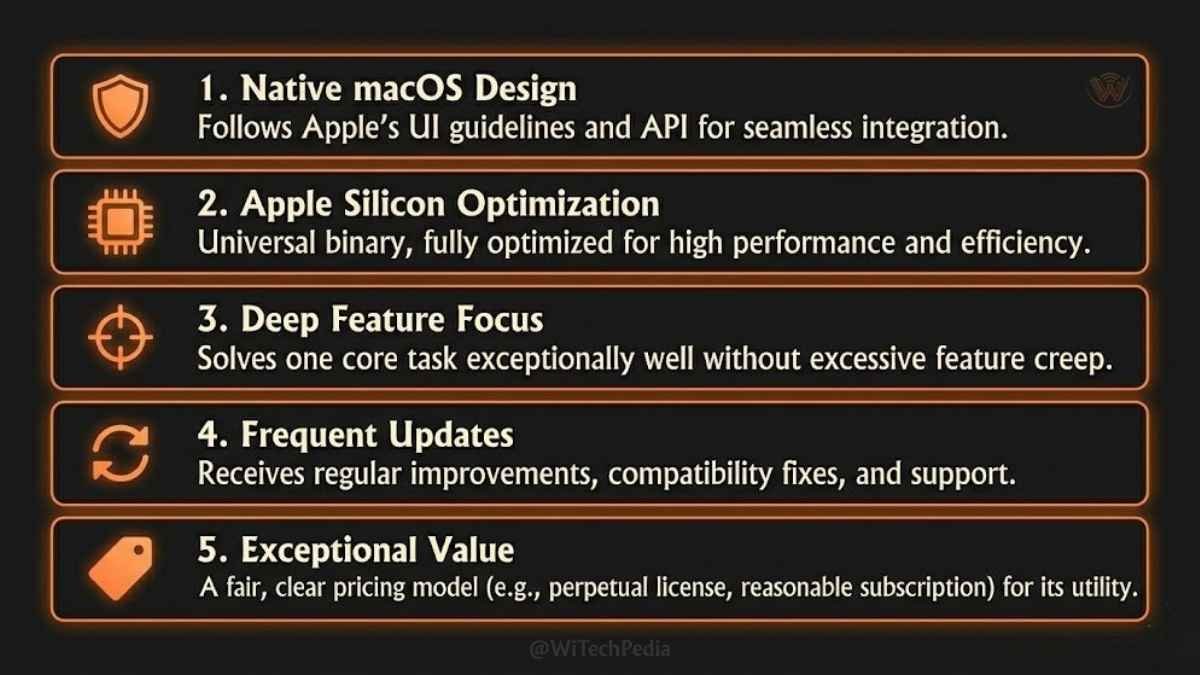
Before diving into the list, it’s worth knowing what separates a great MacOS app from a mediocre one. The best Mac apps 2026 share these qualities:
- Native macOS design — they respect Apple’s Human Interface Guidelines, look at home in macOS Sonoma and Sequoia, and use system features like Spotlight, Handoff, and Shortcuts.
- Apple Silicon optimization — fully native M-series builds that don’t rely on Rosetta 2 translation, delivering maximum performance and battery efficiency.
- Purposeful focus — they do one thing brilliantly rather than ten things poorly.
- Regular updates — active development, security patches, and macOS version compatibility.
- Value — whether free, freemium, or paid, they earn their place on your dock.
With those standards in mind, here are the top must-have macOS apps of 2026, organized by category.
Best macOS Apps for Productivity
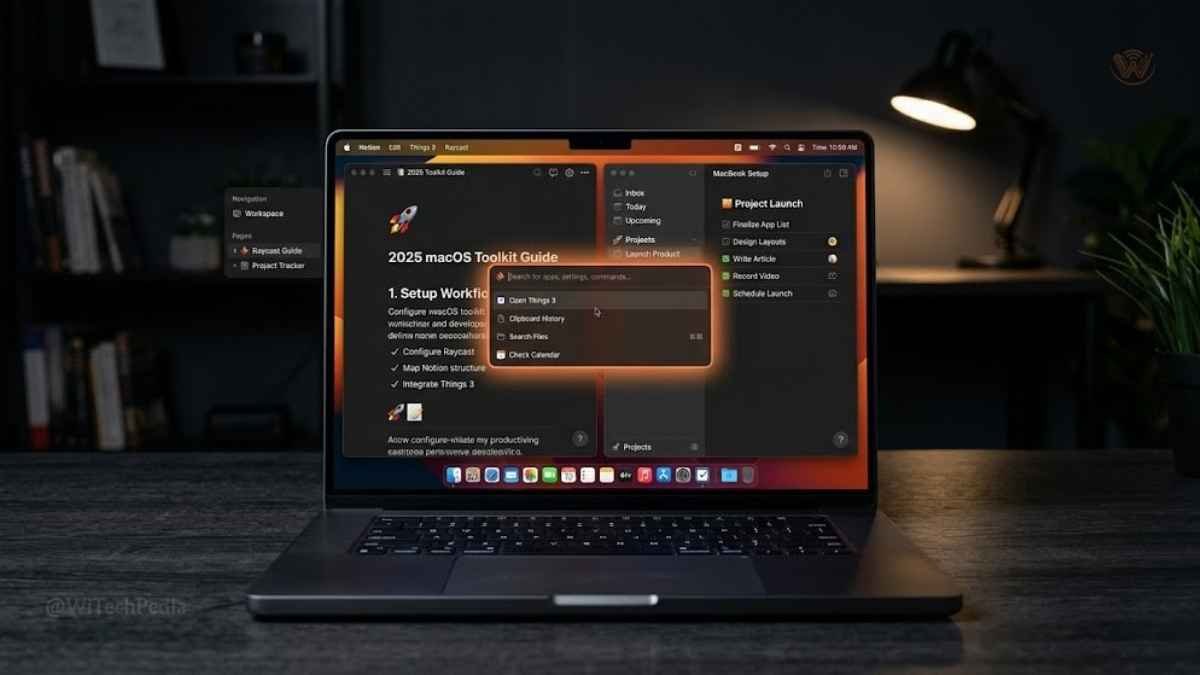
1. Notion — The All-in-One Workspace
Best for: Students, knowledge workers, startup teams, freelancers.
Notion has become the backbone of how millions of people organize their work and personal lives. It blends notes, databases, kanban boards, wikis, and project management into a single, endlessly flexible workspace.
In 2025, Notion AI is deeply integrated — summarizing meeting notes, generating first drafts, and building action lists directly inside your pages. For Mac users, the native app feels fluid with keyboard shortcuts that make navigation feel like second nature.
- Platform: macOS, iOS, Web, Windows
- Price: Free tier available; Paid from $10/month
- Why it’s essential: Nothing else offers this level of flexibility for both personal and team use.
Real-world use case: A UX designer uses Notion to manage client briefs, maintain a design system library, track project milestones, and store research — all in one searchable workspace synced across iPhone, iPad, and Mac.
2. Raycast — The Spotlight Upgrade You Didn’t Know You Needed
Best for: Developers, power users, keyboard-first operators.
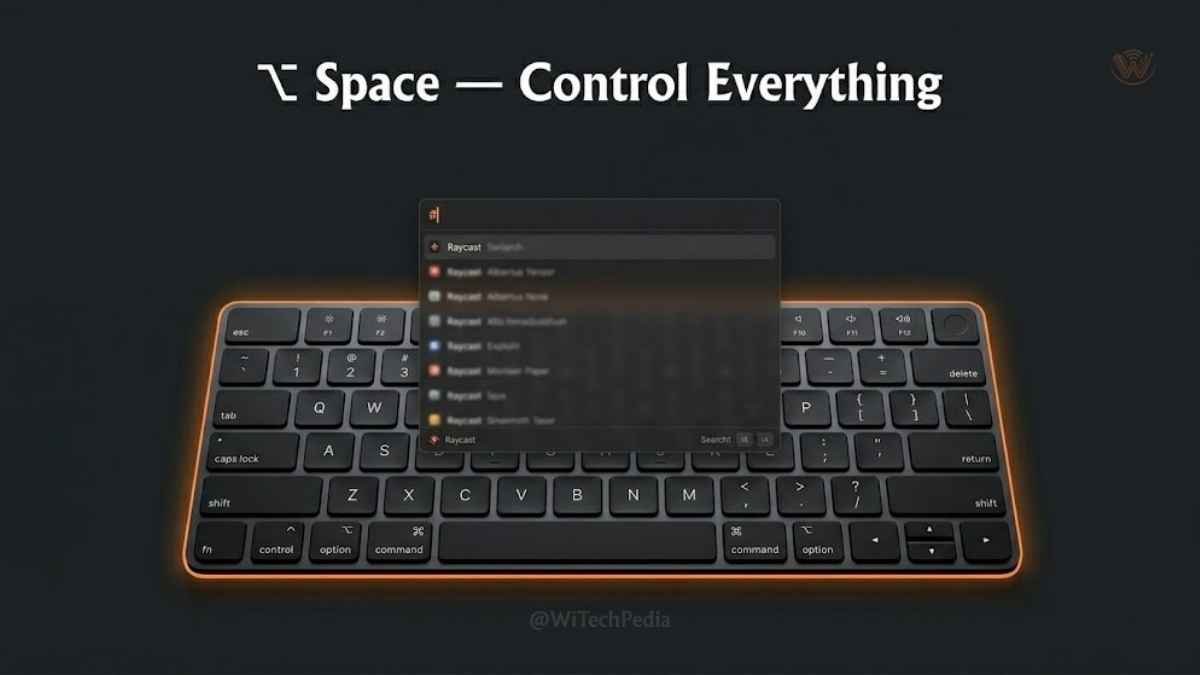
Raycast replaces macOS Spotlight and adds a supercharged command palette that controls your entire Mac. Launch apps, search files, run scripts, manage clipboard history, control Spotify, look up GitHub PRs, and trigger automations — all without lifting your hands from the keyboard.
The 2025 version ships with Raycast AI, a built-in assistant that answers questions, transforms text, and integrates directly with tools like Jira, Linear, and Notion.
- Platform: macOS only
- Price: Free; Pro from $8/month
- Why it’s essential: It replaces five apps and makes your Mac feel like a new machine.
Real-world use case: An engineer hits ⌥ Space, types the name of a GitHub issue, and opens it instantly. Another keystroke pastes from clipboard history. Zero mouse required.
3. Things 3 — The Cleanest Task Manager on macOS
Best for: GTD practitioners, anyone overwhelmed by overcomplicated to-do apps.
Things 3 by Cultured Code remains the gold standard for personal task management on Mac. Its design is legendary — a perfect balance of simplicity and depth. It supports natural language input, Shortcuts automation, calendar integration, and a logical hierarchy of Areas → Projects → Tasks.
Unlike subscription-based alternatives, Things 3 is a one-time purchase. It has earned every design award Apple gives out, and for good reason.
4. Fantastical — Calendar That Understands You
Best for: Professionals managing complex schedules, teams coordinating across time zones.
Fantastical transforms the calendaring experience on Mac with natural language event creation (“Lunch with Sarah next Thursday at 1pm at Taco Bell”), a gorgeous month/week/day layout, and deep integration with Tasks, Reminders, and third-party services like Zoom and Google Meet.
Fantastical’s Meeting Proposals feature — letting you share availability slots without email chains — alone justifies the subscription.
- Platform: macOS, iOS, iPadOS, Apple Watch
- Price: Free tier; Premium from $4.75/month
- Why it’s essential: It replaces Apple Calendar and a scheduling app in one.
5. CleanMyMac — Essential Mac Maintenance
Best for: System optimization, malware removal, junk cleaning
CleanMyMac X remains the most trusted system utility for Mac users worldwide. It finds and removes gigabytes of cached files, clears application leftovers, scans for malware, and manages startup items — all through a beautiful, intuitive interface.
- Platform: macOS
- Price: From $29.95/year
- Why it’s essential: Keeps your Mac running like new, especially older Intel-based models.
Real-world use case: A video editor recovered 38GB of storage after clearing Final Cut Pro render caches using CleanMyMac.
Best macOS Apps for Creativity & Design
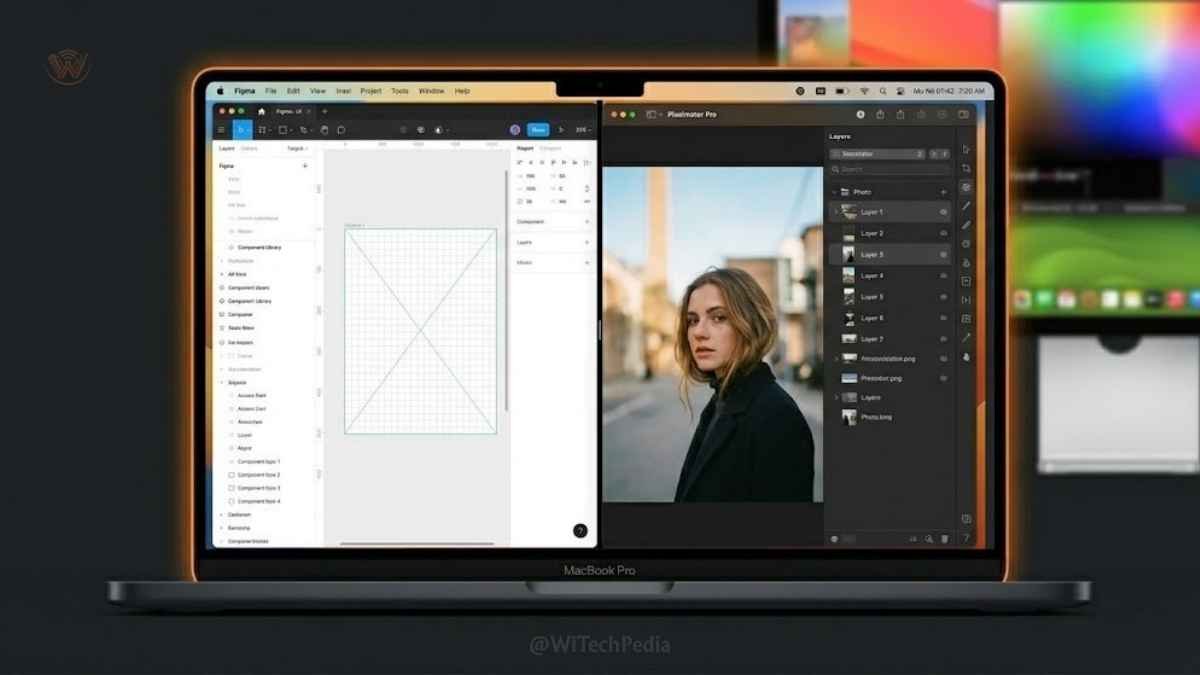
6. Figma — The Industry Standard for UI Design
Price: Free (Starter) | $15/month (Professional) Download: figma.com
Figma runs beautifully as a macOS desktop app (now truly native) and remains the definitive tool for UI/UX design, prototyping, and design systems. Its real-time collaboration puts design files in the same category as Google Docs — multiple designers in one file, simultaneously.
In 2025, Figma AI suggests auto-layouts, generates design variations, and helps teams move from wireframe to high-fidelity prototype faster than ever.
Best for: Product designers, UX teams, indie app developers, design students.
7. Final Cut Pro — Apple’s Professional Video Editor
Best for: Video editing, color grading, motion graphics
Final Cut Pro is Apple’s flagship video editing software, and it’s optimized for Apple Silicon like nothing else. The Magnetic Timeline, background rendering, and ProRes support make it the tool of choice for YouTube creators, filmmakers, and video professionals.
- Platform: macOS only
- Price: $299.99 (one-time) — with 90-day free trial
- Why it’s essential: There’s no faster video editor on a Mac. Period.
Real-world use case: A YouTube creator producing weekly 10-minute 4K videos cuts export time from 25 minutes (Premiere Pro) to under 8 minutes using Final Cut Pro on M3 MacBook Pro.
8. Pixelmator Pro — Professional Photo Editing, Mac-Only
Price: $49.99 (one-time, App Store) Download: Mac App Store
Pixelmator Pro is a macOS-exclusive image editor that punches well above its price. It uses machine learning for one-click background removal, automatic color adjustments, and intelligent upscaling. It handles RAW files, supports layers, and works non-destructively.
Apple acquired Pixelmator in late 2023 — a clear signal this app is only going to get deeper macOS integration over time.
Best for: Photographers, content creators, marketers who need Photoshop-level results without the subscription.
9. Affinity Designer 2 — Professional Vector Design Without the Subscription
Best for: Logo design, UI/UX, illustration
Adobe Illustrator has a dominant reputation — but Affinity Designer 2 matches it feature-for-feature at a one-time purchase price. Serif has built a truly professional design suite that runs natively on Apple Silicon with breathtaking performance.
- Platform: macOS, Windows, iPad
- Price: $69.99 (one-time) or part of the Affinity Suite
- Why it’s essential: Professional-grade vector design without monthly fees.
10. CleanShot X — Screenshot & Screen Recording Perfected
Price: $29 (one-time) | $8/month (Cloud) Download: cleanshot.com
CleanShot X replaces macOS’s native screenshot tool with a powerhouse. Capture windows, regions, or your full screen. Annotate, blur sensitive data, add device mockups, and export in seconds. Its scrolling capture feature screenshots entire web pages or documents in one shot.
Best for: Technical writers, support teams, content creators, anyone who takes screenshots daily.
Best macOS Apps for Developers & Coding
11. Visual Studio Code — The Universal Code Editor
Price: Free (Open Source) Download: code.visualstudio.com
VS Code needs no introduction to developers, but its macOS experience deserves special mention. Apple Silicon support is flawless, extensions like GitHub Copilot integrate seamlessly, and the Remote Development extension lets you code on a remote server from your Mac as if files were local.
Best for: Web developers, data scientists, DevOps engineers, and practically every programmer.
12. iTerm2 — The Terminal Upgrade Your Mac Deserves
Best for: Command-line work, split panes, developer workflows
The built-in macOS Terminal is functional — but iTerm2 is exceptional. Split panes, search, autocomplete, triggers, hotkey windows, and shell integration make it the terminal emulator of choice for macOS developers.
- Platform: macOS only
- Price: Free (open-source)
- Why it’s essential: Every Mac developer should install this on day one.
13. TablePlus — Database Management, Beautifully Done
Price: Free (limited) | $89 (full license) Download: tableplus.com
TablePlus provides a native macOS GUI for managing PostgreSQL, MySQL, SQLite, Redis, and more. Its interface is clean, fast, and feels exactly like a Mac app should — unlike heavier Electron-based alternatives. Query editing, data browsing, and schema visualization are all first-class.
Best for: Backend developers, DBAs, data engineers who manage multiple databases.
14. Warp — The Terminal, Reinvented
Price: Free | Pro tier available Download: warp.dev
Warp is a Rust-powered terminal for macOS that brings IDE-like features to the command line — AI-powered command suggestions, block-based output, shared runbooks, and a command palette. It’s one of the fastest-growing developer tools on the Mac platform.
Best for: Engineers, system administrators, DevOps professionals.
Best macOS Apps for Security & Privacy
15. 1Password — The Password Manager That Does It All
Price: $2.99/month (Individual) Download: 1password.com
1Password is the most complete password manager available on macOS. It stores credentials, SSH keys, API tokens, credit cards, documents, and software licenses. The 2025 version includes Passkey support, making traditional passwords increasingly optional.
Its Watchtower feature monitors your saved credentials for data breaches in real time.
Best for: Everyone. Seriously — no Mac should be without a password manager.
See also: WiTechPedia — Cybersecurity
16. Little Snitch — Control Every Network Connection
Price: €45 (one-time) Download: obdev.at/littlesnitch
Little Snitch is a macOS firewall and network monitor that shows you exactly which apps are making network connections, to where, and when. It gives you per-app control to allow or deny connections, and its Network Monitor visualizes traffic in real time on a beautiful world map.
For privacy-conscious users, Little Snitch is indispensable.
Best for: Security professionals, privacy advocates, anyone who wants full transparency over their Mac’s network activity.
Best macOS Apps for System Utilities
17. CleanMyMac X — Mac Maintenance, Simplified
Price: $34.95/year Download: macpaw.com/cleanmymac
CleanMyMac X from MacPaw is the most trusted Mac cleanup and maintenance utility. It removes junk files, uninstalls apps cleanly (including all residual files), monitors system performance, manages login items, and scans for malware.
Best for: Anyone wanting to keep their Mac fast without manually digging through system files.
18. Alfred — The Veteran Power Launcher
Price: Free | Powerpack from £34 (one-time) Download: alfredapp.com
Alfred pioneered the launcher category on macOS long before Raycast arrived. Its Workflows system enables powerful multi-step automations triggered by keywords. It integrates with hundreds of services and is infinitely extensible. Many veteran Mac users swear by Alfred over any alternative.
Best for: Power users who love deep automation and have been in the Mac ecosystem for years.
19. Bartender 5 — Master Your Menu Bar
Price: $16 (one-time) Download: macbartender.com
As you install more Mac apps, your menu bar becomes cluttered. Bartender lets you hide, reorder, and reveal menu bar icons on demand, keeping your workspace clean. It supports macOS Sonoma’s Stage Manager and works beautifully with Apple’s notch design on newer MacBooks.
Best for: Anyone with more than 10 menu bar icons.
Best macOS Apps for Communication & Collaboration
20. Slack — Team Messaging That Works
Price: Free | Pro from $7.25/month Download: slack.com
Slack remains the dominant team communication platform and its macOS app is polished and reliable. Native notifications, keyboard shortcuts, Huddles for quick voice/video calls, and deep integrations with GitHub, Jira, and Google Workspace make it the hub of modern team workflows.
Best for: Teams of all sizes, remote workers, open-source communities.
21. Mimestream — Gmail, Natively
Price: $4.99/month Download: mimestream.com
Mimestream is a native macOS email client built exclusively for Gmail. It delivers the Gmail experience through Apple’s mail architecture — fast, fully offline, with push notifications that feel instantaneous. If you live in Gmail but hate the web interface, Mimestream is the answer.
Best for: Gmail power users who want a native Mac experience.
☁️ Best Cloud & File Management Apps for macOS
22. Dropbox — Battle-Tested Cloud Storage
Best for: File syncing, team collaboration, external sharing
Dropbox remains a top-tier choice for macOS cloud storage, especially for teams. Its Smart Sync feature keeps files accessible without consuming local storage, and the Dropbox Paper integration adds a lightweight collaborative workspace.
- Platform: macOS, Windows, iOS, Android, Web
- Price: Free 2GB; Plus from $11.99/month
- Why it’s essential: Reliable, fast, and universal — works with every app on your Mac.
23. Archiver 4 — The Best File Compression App for Mac
Best for: Archive management, compression, file conversion
Archiver 4 handles every archive format macOS doesn’t natively support — RAR, 7z, tar, gz, and more. Its clean drag-and-drop interface and preview capability make it far superior to any free alternative.
- Platform: macOS only
- Price: $24.99 (one-time)
- Why it’s essential: A must-have for anyone who regularly handles compressed files.
🌐 Best macOS Apps for Browsers & Communication
24. Arc Browser — The Browser Reimagined
Best for: Power browsing, tab organization, productivity
Arc Browser by The Browser Company has become one of the most talked-about macOS apps in years. Its vertical sidebar, Spaces for different contexts (work, personal, research), and AI-powered features like “Ask on Page” make it a genuinely different browsing experience.
- Platform: macOS, iOS, Windows (beta)
- Price: Free
- Why it’s essential: Once you use Arc, going back feels like a step backward.
25. Mimestream — Gmail, But Native
Best for: Gmail users who want a native Mac experience
Mimestream is what happens when a talented developer builds a native macOS mail client specifically for Gmail. It uses Gmail’s API directly — so labels, threads, and filters work exactly as Google intended, but with the speed and feel of a native Mac app.
- Platform: macOS only
- Price: Free (personal); $4.99/month (Pro)
- Why it’s essential: The best Gmail client on macOS. No contest.
Comparison Table: Best macOS Apps at a Glance
| App | Category | Price Model | macOS Native | AI Features | Best For |
|---|---|---|---|---|---|
| Notion | Productivity | Free / $10 mo | ✅ | ✅ Notion AI | Notes, docs, databases |
| Raycast | Launcher | Free / $8 mo | ✅ | ✅ Raycast AI | Power launchers |
| Things 3 | Task Manager | $49.99 one-time | ✅ | ❌ | GTD, personal tasks |
| Fantastical | Calendar | Free / $4.75 mo | ✅ | ❌ | Calendar & scheduling |
| Figma | Design | Free / $15 mo | ✅ | ✅ Figma AI | UI/UX design |
| Pixelmator Pro | Photo Editing | $49.99 one-time | ✅ (Mac only) | ✅ ML features | Photo editing |
| CleanShot X | Screenshots | $29 one-time | ✅ | ❌ | Captures & annotation |
| VS Code | Code Editor | Free | ✅ (AS native) | ✅ Copilot | All programming |
| TablePlus | DB Manager | Free / $89 | ✅ | ❌ | Database work |
| Warp | Terminal | Free | ✅ | ✅ AI commands | CLI & DevOps |
| 1Password | Security | $2.99/mo | ✅ | ❌ | Passwords & passkeys |
| Little Snitch | Firewall | €45 one-time | ✅ (Mac only) | ❌ | Network privacy |
| CleanMyMac X | System | $34.95/yr | ✅ | ❌ | Mac maintenance |
| Alfred | Launcher | Free / £34 | ✅ | ❌ | Advanced automation |
| Bartender 5 | Utility | $16 one-time | ✅ | ❌ | Menu bar management |
| Slack | Communication | Free / $7.25 mo | ✅ | ✅ | Team messaging |
| Mimestream | $4.99/mo | ✅ (Gmail only) | ❌ | Gmail on Mac |
Best Free macOS Apps Worth Downloading Today
Not every great Mac app costs money. Here are the best free macOS apps with no catch:
- Raycast (free tier) — Replaces Spotlight with far more power.
- Visual Studio Code — Fully featured, completely free.
- Warp (free tier) — Best terminal experience available.
- Figma (Starter) — Full design power for individuals.
- VLC Media Player — Plays any video or audio format, no questions asked. (videolan.org)
- Rectangle — Snaps windows to screen zones with keyboard shortcuts. Free and open source. (rectangleapp.com)
- HandBrake — Open-source video transcoder. (handbrake.fr)
- IINA — Modern, beautiful video player built for macOS. (iina.io)
Best macOS Apps for Students
Students have specific needs: note-taking, focus, writing, and staying organized on a budget. Here’s what works:
- Notion (free Personal plan) — Notes, assignments, and research in one place.
- Things 3 — Manage coursework, deadlines, and personal tasks.
- VS Code — Essential for CS and data science students.
- Grammarly — Writing assistant for essays, emails, and reports. (grammarly.com)
- Zotero — Free, open-source reference manager for citations and research. (zotero.org)
- Rectangle — Free window manager to organize your screen during study sessions.
How to Choose the Right macOS Apps for Your Workflow
With thousands of options, narrowing down which apps to install takes a clear framework:
Step 1 — Identify your bottlenecks. Where do you lose time on your Mac? Searching for files, switching between windows, managing email? Match apps to your actual friction points.
Step 2 — Prefer one-time purchases for tools you’ll use daily. Apps like Things 3, Pixelmator Pro, and Alfred deliver daily value without draining your subscription budget over time.
Step 3 — Check Apple Silicon optimization. Visit isapplesiliconready.com or check the App Store description. Native M-series builds run significantly faster and use far less battery.
Step 4 — Trial before buying. Most paid Mac apps offer either a free trial or a demo version. Use them. Don’t purchase based on a list alone.
Step 5 — Audit quarterly. Review your installed apps every few months. Remove what you don’t use. A lean Mac is a fast Mac.
Frequently Asked Questions
What are the best macOS apps for productivity in 2026?
The top productivity apps for macOS in 2025 are Notion (notes, docs, and databases), Things 3 (task management), Fantastical (calendar), and Raycast (launcher and automation). Together, these four apps cover the core productivity pillars — capturing, organizing, scheduling, and executing — making them the foundation of any Mac power user’s setup.
Are the best macOS apps free or paid?
Both. Several of the best macOS apps are free or offer generous free tiers — including Raycast, Visual Studio Code, Warp, Figma (Starter), and Rectangle. Others are worth their price: Things 3 ($49.99 one-time), Pixelmator Pro ($49.99 one-time), and CleanShot X ($29 one-time) deliver outstanding value without recurring fees. In general, free tools handle utilities and creativity well, while the best task management and security apps justify a small investment.
What apps should I download on a new Mac?
On a brand-new Mac, start with these essentials: Raycast (replace Spotlight immediately), 1Password (secure your logins from day one), Rectangle (window management), VS Code (if you write code), Notion (notes and organization), and CleanShot X (screenshots). These seven apps transform a stock macOS experience into a truly optimized one in under 30 minutes.
What is the best free Mac app for window management?
Rectangle is the best free window management app for macOS. It lets you snap windows to halves, thirds, corners, and full-screen positions using keyboard shortcuts. It’s open source, lightweight, and requires no setup. For power users who want more advanced features like window layouts, saved arrangements, and multi-monitor profiles, Moom ($9.99) is the premium alternative.
Are macOS apps compatible with Apple Silicon (M1, M2, M3, M4)?
All the apps listed in this guide are Apple Silicon-native or have been fully optimized for M-series chips. Running a native ARM64 app on an Apple Silicon Mac means faster launch times, better performance per watt, and significantly improved battery life compared to Rosetta 2 translations. To check any app, open Activity Monitor, find the app in the list, and look for “Apple” in the Architecture column. You can also check isapplesiliconready.com before downloading.
What are the best macOS apps for developers?
For developers, the must-have macOS apps are Visual Studio Code (code editor), Warp (terminal), TablePlus (database management), and Raycast (workflow automation). Add 1Password for SSH key and API token management, and Little Snitch for monitoring outbound connections during development. This stack covers the full development workflow natively on macOS.
Conclusion: Build a Mac That Works as Hard as You Do
The Mac is the most powerful personal computing platform available in 2025. But hardware is only half the equation. The best macOS apps are what transform raw performance into real-world capability — turning a beautiful machine into a genuinely productive, creative, and secure workspace.
Here are the key takeaways from this guide:
- Raycast and 1Password belong on every Mac, regardless of profession.
- Native macOS apps — ones built for Apple Silicon — deliver better performance and battery life than cross-platform alternatives.
- Productivity, design, development, security, and utilities each have clear category winners in 2025.
- Free doesn’t mean inferior. Several of the best tools cost nothing.
- Audit your apps regularly. The best toolkit is a lean one.
Start with the essentials, build from there, and always let your actual workflow guide your choices — not a spec sheet.
Ready to go deeper? Explore these related WiTechPedia guides:
- Best Linux Distros in 2025 — Complete Guide
- Best AI Tools for Productivity in 2025
- Machine Learning on Apple Silicon — What You Need to Know
Subscribe to the WiTechPedia newsletter for weekly picks on the best software, AI tools, and tech insights — delivered straight to your inbox.