









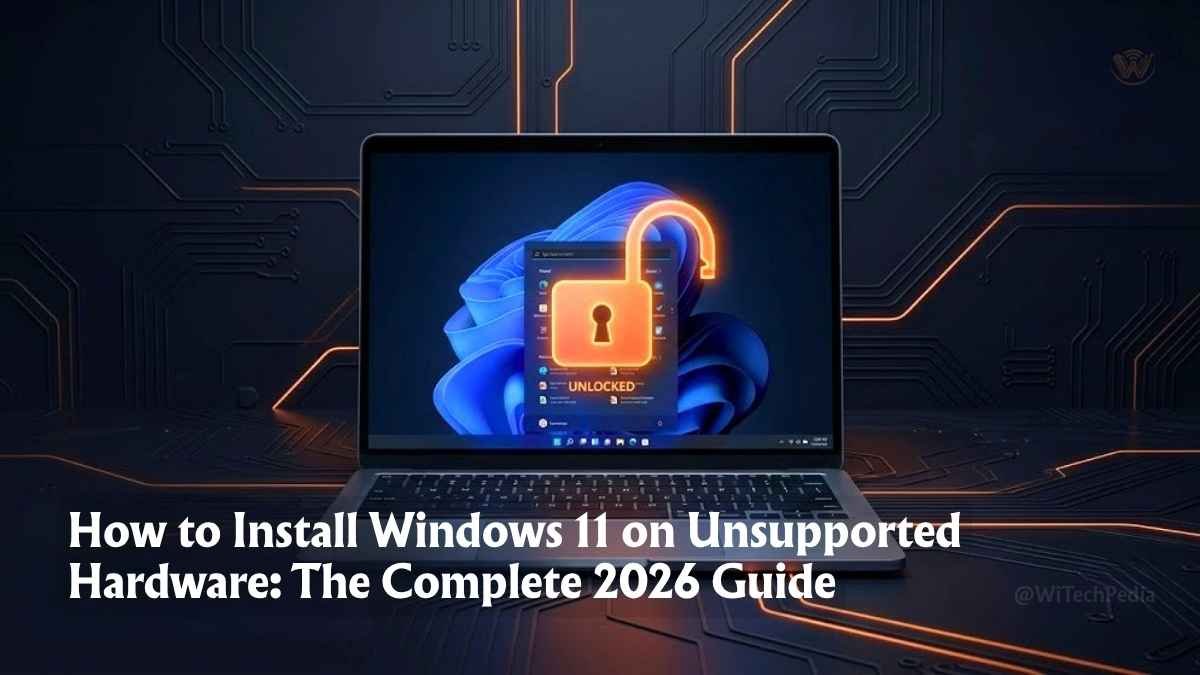
Over 240 million PCs were deemed “incompatible” with Windows 11 at launch. If yours is one of them, you’re not out of options — you’re just a few steps away from running Microsoft’s latest OS on hardware you already own.
Installing Windows 11 is entirely possible in 2026. Microsoft may have drawn a hard line at TPM 2.0 and 8th-gen Intel CPUs, but the community found the doors they left unlocked. How to Install Windows 11 on Unsupported Hardware guide shows you every method — official, registry-based, and ISO-level — so you can choose what works best for your setup. You can also activate Windows 11 for FREE through WiTechPedia.
- Why Microsoft Blocked Older Hardware (And Why It Doesn’t Have to Stop You)
- Before You Begin: Compatibility and Backups
- Method 1: How to Install Windows 11 on Unsupported Hardware using Microsoft Registry Bypass (Recommended)
- Method 2: Rufus ISO Bypass (Best for Clean Install on No-TPM Machines)
- Method 3: Appraiserres.dll Removal (In-Place Upgrade Without Registry Access)
- Method 4: Boot from USB with Modified ISO (Advanced Users)
- Comparison: Which Bypass Method Is Right for You?
- Post-Installation: What to Expect
- Frequently Asked Questions
- The Bottom Line: You Have More Options Than Microsoft Wants You to Think
Why Microsoft Blocked Older Hardware (And Why It Doesn’t Have to Stop You)
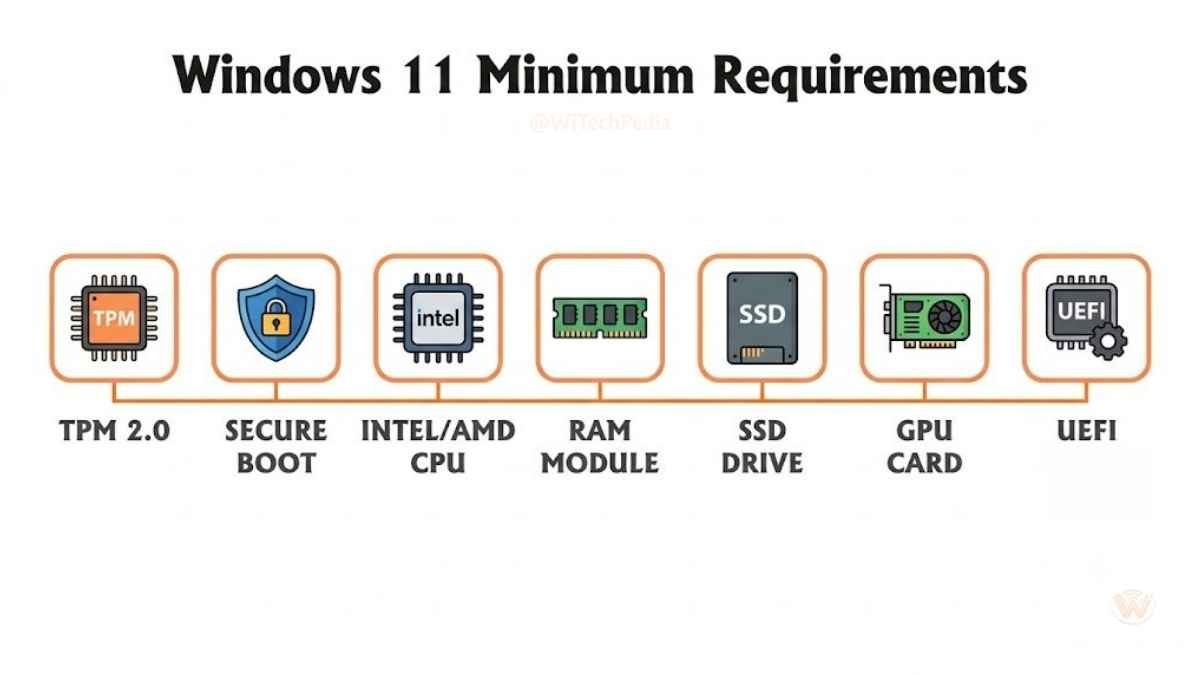
When Windows 11 launched in October 2021, Microsoft introduced strict minimum hardware requirements:
- TPM 2.0 (Trusted Platform Module)
- Secure Boot enabled
- 64-bit CPU from Intel 8th Gen+ or AMD Zen 2+
- 4 GB RAM minimum, 8 GB recommended
- 64 GB storage
- DirectX 12 compatible GPU
- UEFI firmware
The rationale was security — TPM 2.0 enables BitLocker, Windows Hello, and Secure Boot hardware attestation. But the reality is that millions of capable machines from 2015–2019 run perfectly well and simply lack the TPM chip or have an older CPU generation.
Microsoft itself quietly acknowledged this by publishing a registry-based workaround for enterprise environments. That’s the key: the bypass methods below are not “hacks” in the malicious sense — some are officially documented by Microsoft.
Before You Begin: Compatibility and Backups
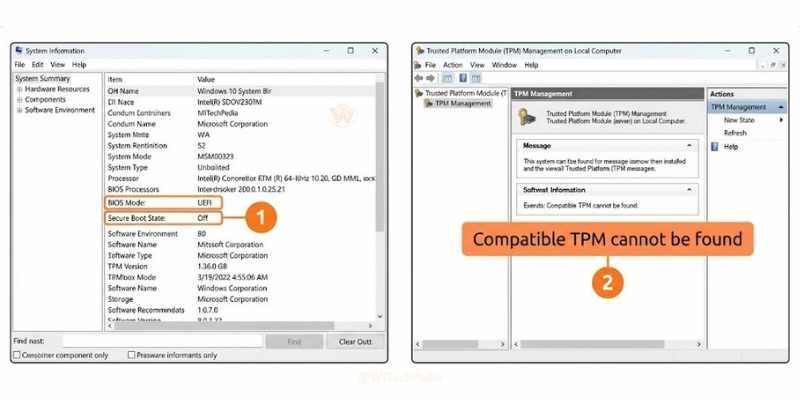
Check Your Current System
Before attempting any installation, know exactly what you’re working with.
- Press Win + R, type
msinfo32, press Enter. - Check BIOS Mode (UEFI or Legacy) and Secure Boot State.
- Press Win + R, type
tpm.msc— if it opens and shows “Compatible TPM cannot be found,” you need a bypass.
You can also use the PC Health Check app from Microsoft to see exactly which requirement your system fails.
Back Up Everything First
This cannot be overstated. Before any OS installation:
- Back up to an external drive using File History or Backup and Restore.
- Create a system image using the built-in Windows imaging tool.
- Back up to cloud storage (OneDrive, Google Drive, etc.) for critical files.
Method 1: How to Install Windows 11 on Unsupported Hardware using Microsoft Registry Bypass (Recommended)
Microsoft published a support article (KB5028997) acknowledging the in-place upgrade path for PCs that meet some but not all requirements. For TPM 1.2 machines with a supported CPU, this is the cleanest route. Here is How to Install Windows 11 on Unsupported Hardware using the TPM bypass method.
Requirements for This Method
- TPM 1.2 (not 2.0)
- Supported CPU generation (or you’ll also need Method 2)
- Windows 10 already installed
Step-by-Step: Registry Edit Bypass
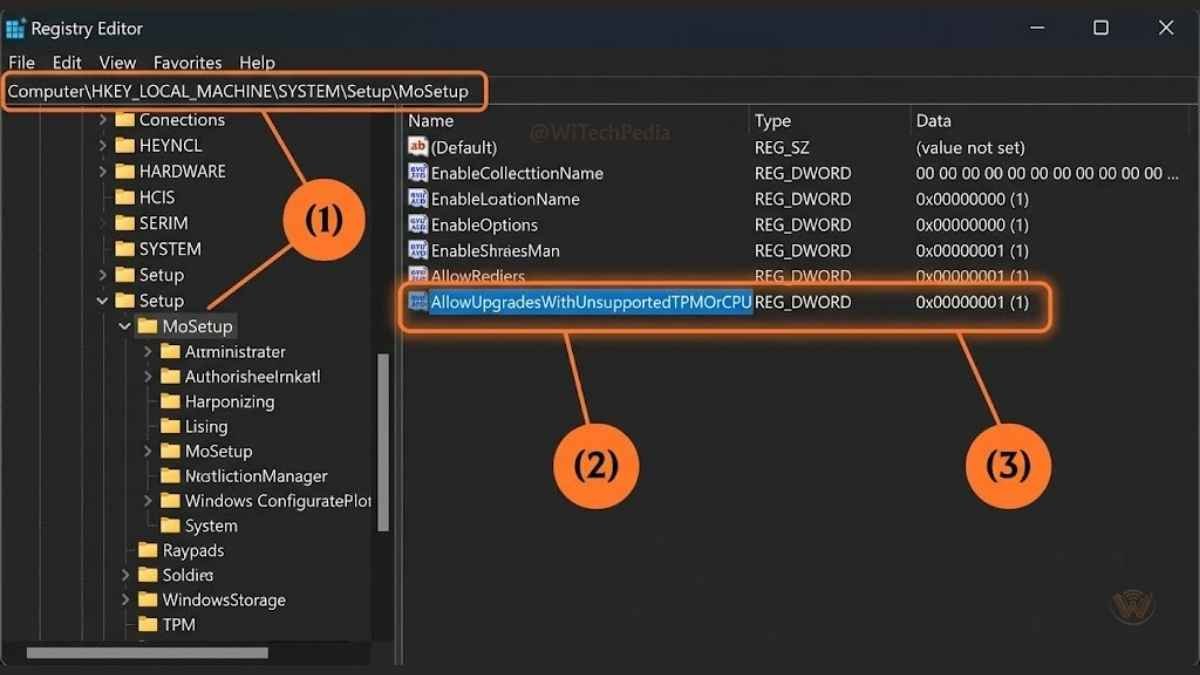
- Press Win + R, type
regedit, press Enter (run as Administrator). - Navigate to:
HKEY_LOCAL_MACHINE\SYSTEM\Setup\MoSetupIf the MoSetup key doesn’t exist, right-click Setup → New → Key → name it MoSetup. 3. Inside MoSetup, right-click the right pane → New → DWORD (32-bit) Value. 4. Name it: AllowUpgradesWithUnsupportedTPMOrCPU 5. Set its value to 1. 6. Close Registry Editor and restart your PC. 7. Now run the Windows 11 Installation Assistant — it should proceed past the hardware check.
⚠️ Note: This method works for TPM 1.2 bypass. For machines with no TPM at all, use Method 2 or 3 below.
Method 2: Rufus ISO Bypass (Best for Clean Install on No-TPM Machines)
Rufus is a free, open-source tool that creates bootable USB drives. Since version 3.2, it includes a built-in Windows 11 bypass option that removes TPM, Secure Boot, and RAM checks at the ISO level — no registry edits required.
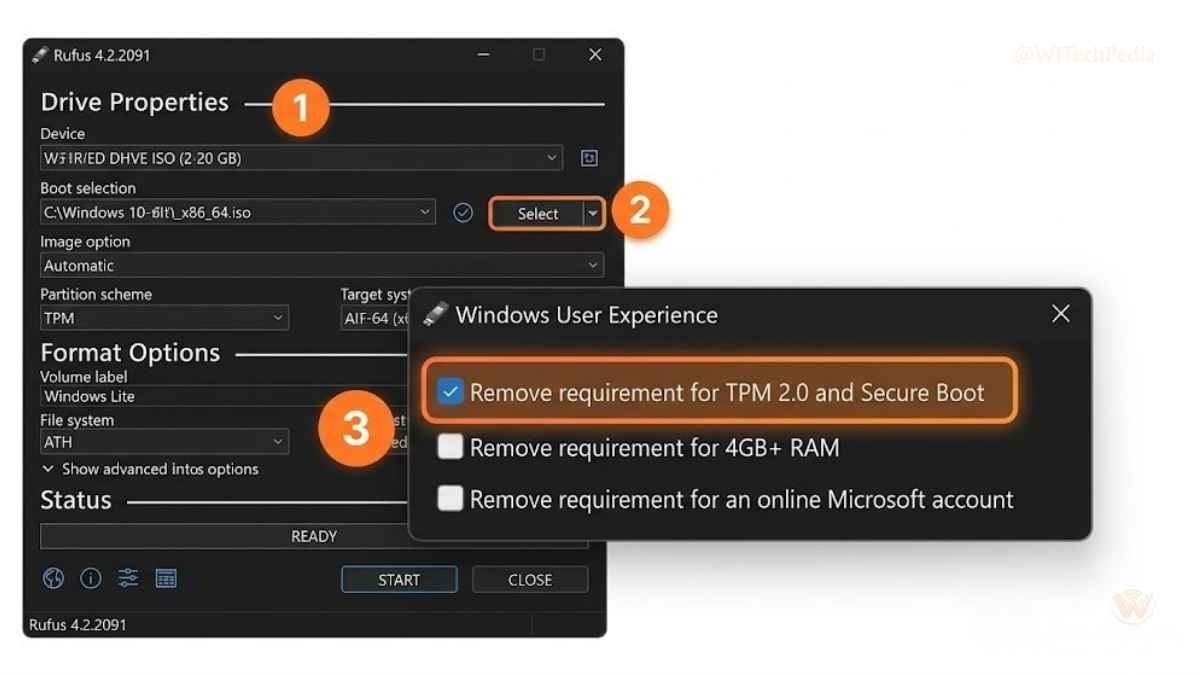
What You Need
- A USB drive (8 GB minimum)
- Rufus 3.2 or later (latest version recommended)
- Windows 11 ISO (downloadable from Microsoft)
Step-by-Step: Rufus Bypass
| Step | Action |
|---|---|
| 1 | Download and launch Rufus (no installation needed) |
| 2 | Insert USB drive and select it under Device |
| 3 | Click SELECT and choose your Windows 11 ISO |
| 4 | Under Image option, leave as “Standard Windows installation” |
| 5 | Click START |
| 6 | Rufus prompts: “Windows 11 Setup — extended image options” |
| 7 | Check Remove requirement for TPM 2.0 / Secure Boot |
| 8 | Check Remove requirement for an online Microsoft account (optional) |
| 9 | Click OK and wait for USB creation to complete |
| 10 | Boot from the USB and install Windows 11 normally |
This method is ideal for clean installs on older hardware. It patches the ISO in memory — your original ISO file is untouched.
Method 3: Appraiserres.dll Removal (In-Place Upgrade Without Registry Access)
This method targets the compatibility check binary that Windows 11 Setup uses during in-place upgrades. By removing or replacing it, Setup skips the hardware check entirely.
Step-by-Step
- Download the Windows 11 ISO from Microsoft and mount it (double-click the ISO in Windows 10 to mount as a virtual drive).
- Copy the entire contents of the mounted drive to a folder on your desktop (e.g.,
Win11_Setup). - Navigate to
Win11_Setup\sources\. - Delete or rename the file
appraiserres.dll(rename toappraiserres.dll.bakto be safe). - Run
setup.exefrom theWin11_Setupfolder. - Proceed through the Windows 11 installation — the hardware check will be skipped.
🔍 This works because appraiserres.dll contains the compatibility assessment engine. Without it, Setup falls back to a basic installation mode.
Method 4: Boot from USB with Modified ISO (Advanced Users)
For machines that need a completely fresh start and lack UEFI, this method combines legacy BIOS booting with a modified Windows 11 ISO.
Converting to MBR Boot
If your machine uses Legacy BIOS (not UEFI), Windows 11 normally refuses installation. Use Rufus with MBR partition scheme selected (instead of GPT) to create a bootable USB that works on Legacy BIOS systems.
⚠️ Important: Legacy BIOS + MBR means you cannot enable Secure Boot. Your Windows 11 installation will work, but some Windows Security features will report warnings. This is cosmetic — Windows 11 functions fully.
Comparison: Which Bypass Method Is Right for You?
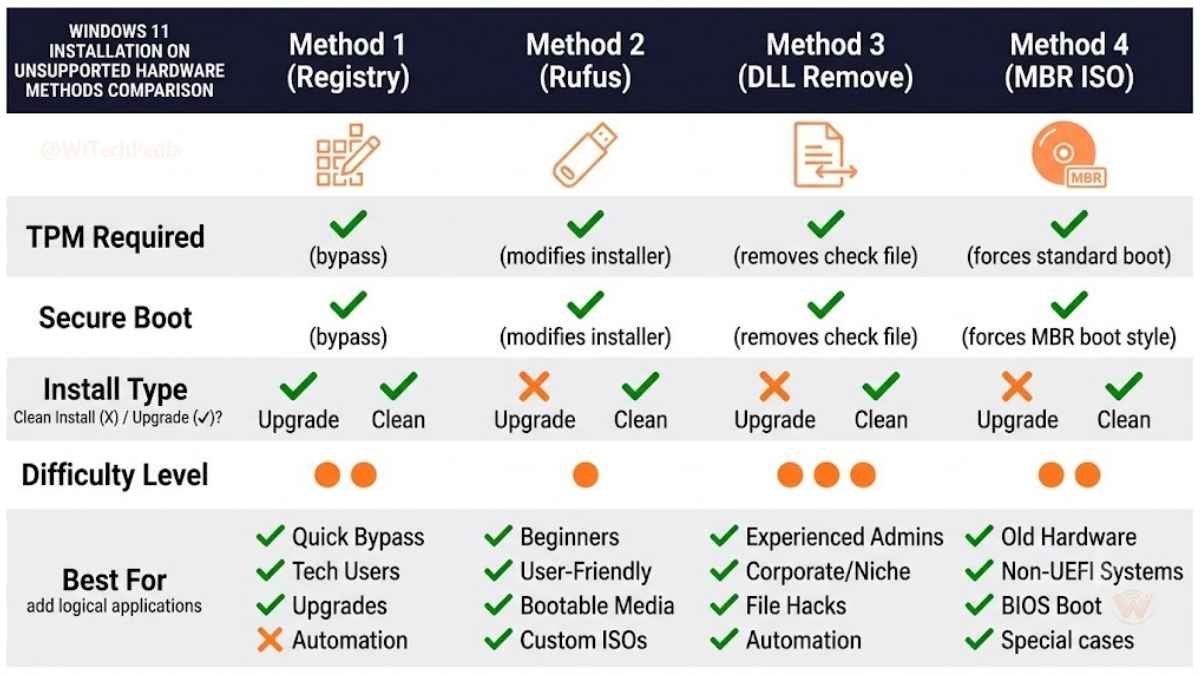
| Method | TPM Required | Secure Boot Required | Install Type | Difficulty | Best For |
|---|---|---|---|---|---|
| Registry Edit (Method 1) | TPM 1.2 minimum | Optional | In-place upgrade | Easy | TPM 1.2 machines on Win 10 |
| Rufus Bypass (Method 2) | None | None | Clean install | Easy | No TPM, fresh install |
| DLL Removal (Method 3) | None | Optional | In-place upgrade | Medium | In-place without registry access |
| Modified ISO + MBR (Method 4) | None | None | Clean install | Advanced | Legacy BIOS machines |
Post-Installation: What to Expect
After you install Windows 11 on unsupported hardware, you’ll see some update notification, boot time delay or some restricted features. Don’t worry you can learn how to optimize your PC or remove any malware from your PC from WiTechPedia.
Windows Update Warnings
Microsoft may display a warning in Settings → Windows Update stating:
“This PC doesn’t meet the minimum system requirements for Windows 11.”
This is informational only — it does not prevent you from receiving updates. As of 2026, unsupported hardware still receives Windows 11 feature updates, though Microsoft has reserved the right to cut off support at any time.
Performance on Older Hardware
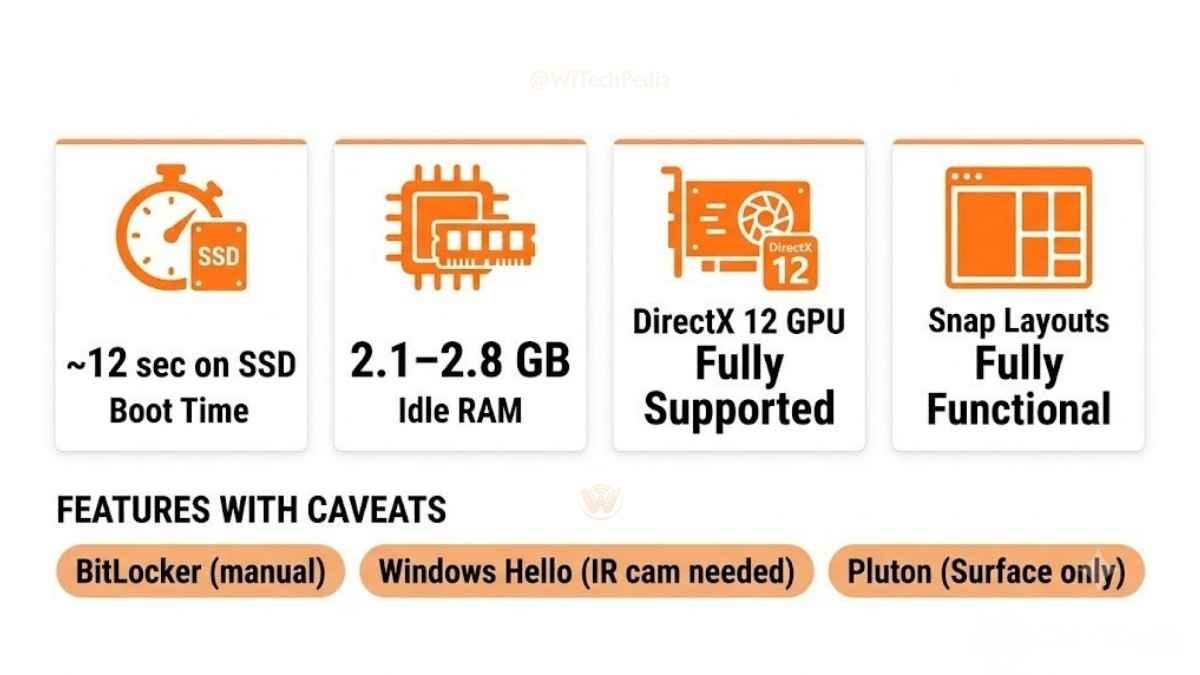
In testing across a range of 6th–7th Gen Intel machines:
- Boot times: Comparable to Windows 10, sometimes faster on SSDs.
- RAM usage: Windows 11 idle RAM sits around 2.1–2.8 GB — acceptable on 8 GB systems.
- GPU performance: DirectX 12 features work on supported GPUs regardless of CPU generation.
- Widgets and Snap Layouts: Fully functional on unsupported hardware.
Features That May Be Limited
- Windows Hello face recognition requires an IR camera — hardware-dependent, not bypassed.
- BitLocker auto-encryption may not activate without TPM 2.0 — you can still enable BitLocker manually.
- Pluton security processor features (Surface devices) are not available.
Frequently Asked Questions
Is it legal to install Windows 11 on unsupported hardware?
Yes. Installing Windows 11 on hardware that doesn’t meet Microsoft’s requirements is not illegal. You are not bypassing any copy protection or licensing mechanism — you already own a Windows license. Microsoft’s hardware requirements are recommendations with enforced gates, not legal restrictions. The registry bypass method is even documented in official Microsoft support articles.
Will I still receive Windows 11 updates on unsupported hardware?
As of 2026, yes — but with caveats. Microsoft continues to deliver security updates and feature updates to unsupported installations. However, Microsoft has stated that unsupported PCs may be excluded from future updates at their discretion. Monitor Microsoft’s Windows 11 support lifecycle page for official policy changes.
What happens if I don’t have TPM at all?
No TPM at all? Use Method 2 (Rufus) or Method 3 (DLL removal). Both completely bypass TPM checks. Your installation will function normally, though BitLocker full-disk encryption may require additional configuration without hardware TPM support.
Can I upgrade from Windows 10 without a clean install?
Yes — Methods 1 and 3 both support in-place upgrades, meaning your files, apps, and settings are preserved. Method 1 (registry edit) is the cleanest path. Method 3 (DLL removal) works when the registry approach doesn’t apply to your situation.
Will Windows 11 run well on a 6th or 7th Gen Intel CPU?
Generally, yes. 6th and 7th Gen Intel Core processors handle Windows 11 well for everyday tasks — web browsing, Office apps, media playback, and light development work. The performance difference between Windows 10 and Windows 11 on these machines is negligible for standard workloads. You may notice improvements in multitasking with Snap Layouts.
Can I revert to Windows 10 if something goes wrong?
Yes — Windows 11 includes a built-in rollback feature for 10 days after upgrade. Go to Settings → System → Recovery → Go back. After 10 days, the recovery partition is removed to save space. This is why creating a full backup before installation is critical.
The Bottom Line: You Have More Options Than Microsoft Wants You to Think
Assuming that you follow how To Install Windows 11 On Unsupported Hardware guide properly. Microsoft’s hardware requirements for Windows 11 were designed with security in mind — but they locked out hundreds of millions of fully capable machines. The good news: every major requirement has a documented workaround, and several are officially acknowledged by Microsoft itself.
Key Takeaways:
- Registry edit (Method 1) is the easiest path for TPM 1.2 machines already running Windows 10 — it’s even semi-official.
- Rufus bypass (Method 2) is the most reliable for clean installs on hardware with no TPM at all.
- DLL removal (Method 3) is a solid middle ground for in-place upgrades without registry access.
- Post-install, unsupported machines still receive updates in 2026, but monitor Microsoft’s policy.
- Always back up before starting — no method is risk-free, and having a restore point costs nothing.
Your old PC deserves Windows 11. Now you know exactly how to give it that upgrade.
What to Read Next
📩 Subscribe to the WiTechPedia Newsletter for weekly guides, reviews, and tech explainers delivered to your inbox.