









Most people use Claude AI the same way every session — they open a chat, type a prompt, and wait for a response. But a growing group of power users knows something the rest don’t: Claude slash commands can radically change how fast and how precisely you work with AI.
- What Are Claude Slash Commands?
- Claude.ai Native Slash Commands (Interface Commands)
- Claude Code Slash Commands
- Claude Slash Commands Comparison Table
- Building Custom Slash Commands in Claude.ai Projects
- How to Use Claude Slash Commands: 5 Real-World Workflows
- Frequently Asked Questions
- Final Thoughts: Work Smarter with Claude Slash Commands
Whether you’re a developer integrating Claude into a workflow, a researcher running repeated tasks, or a writer who lives inside Claude.ai every day, slash commands are the keyboard shortcuts of AI productivity. They save time, reduce friction, and put you in control. This guide covers every Claude slash command available today, how each one works, and exactly when to use it.
What Are Claude Slash Commands?
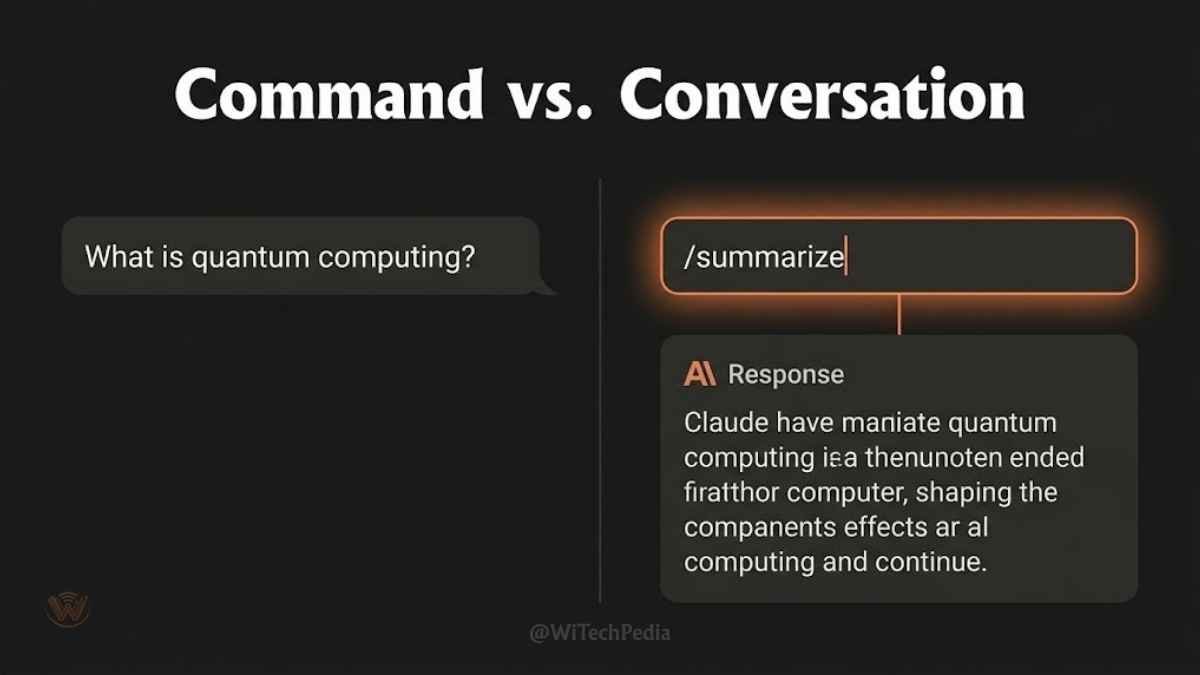
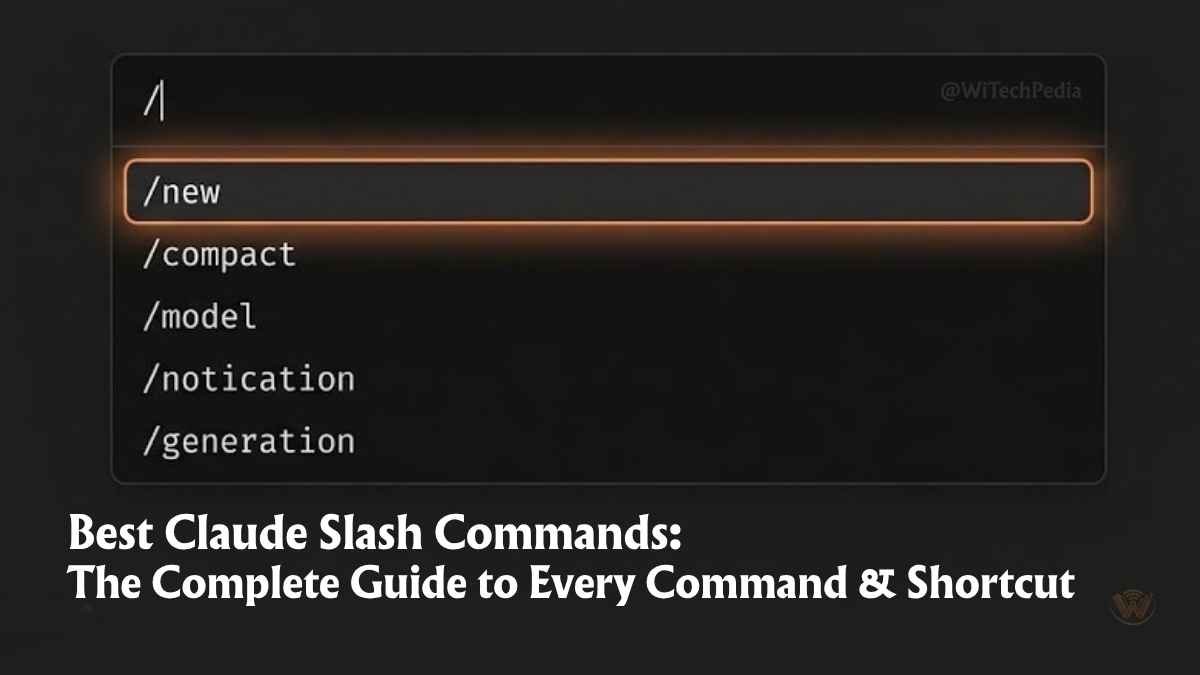
Claude slash commands are special text-based instructions that begin with a forward slash (/) typed directly in the Claude chat interface. When you type a slash at the start of a message, Claude (and the Claude.ai interface) interprets it as a command rather than ordinary conversational text.
Think of slash commands the way you’d think of terminal commands in Linux or keyboard shortcuts in Photoshop — they’re precision tools for experienced users who want to bypass menus, reset context, switch behaviors, or invoke specific modes without typing out long natural-language instructions.
Slash commands exist at two levels:
- Interface-level commands — These are handled by the Claude.ai web or desktop interface itself. They control things like starting new chats, clearing history, or switching between features.
- Prompt-level commands — These are conventions you build into your own workflow. You teach Claude how to respond to
/summarize,/rewrite, or/explainthrough system prompts or established patterns in a session.
Understanding the difference is the foundation of mastering Claude commands.
Claude.ai Native Slash Commands (Interface Commands)
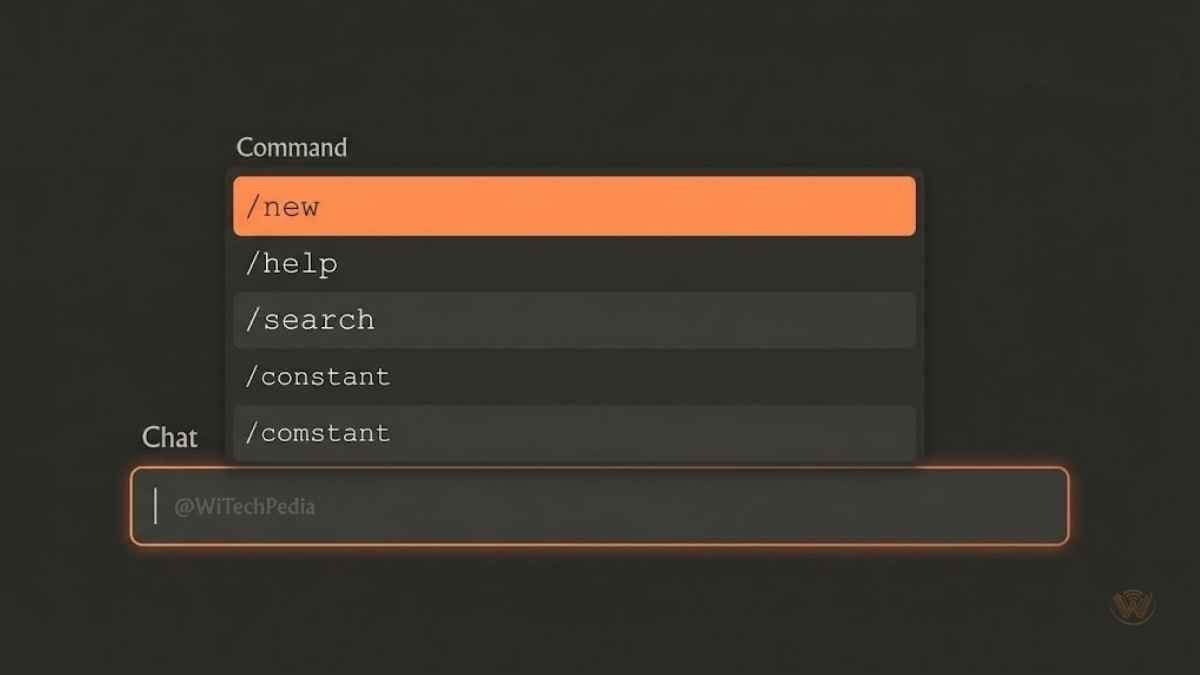
As of 2025–2026, Claude.ai has been progressively rolling out a native slash command palette inside the chat interface. When you type / in the message input box, a command menu appears. Here are the confirmed and widely available native commands:
/new — Start a Fresh Conversation
Typing /new clears the current chat context and opens a blank conversation. This is the fastest way to reset Claude’s working memory without navigating away from the interface.
Best used when: You’ve finished one task and want to start something completely unrelated. Carrying over irrelevant context from a previous task can subtly degrade Claude’s responses.
/help — Access Command Reference
The /help command surfaces a quick-reference panel listing available slash commands in the current interface. If you’re ever unsure what’s available in your current Claude environment (web, mobile, Claude Code), /help is your first stop.
/search — Trigger Web Search Mode
On Claude.ai plans that include web search, /search [query] can invoke Claude’s search capability directly, routing your input to a live web search before Claude formulates a response. This is particularly useful when you need Claude to combine retrieved current data with its own reasoning.
Example: /search latest LLM benchmarks June 2026
/summarize (Conversational Convention)
While not always a hard-wired interface command, /summarize is one of the most widely recognized slash conventions inside Claude sessions. When used in an established chat, Claude recognizes the intent and produces a structured summary of everything discussed so far.
Power tip: Use /summarize at the end of long research sessions before starting a new thread. Copy the summary into your notes or use it as a seed prompt for a follow-up conversation.
Claude Code Slash Commands
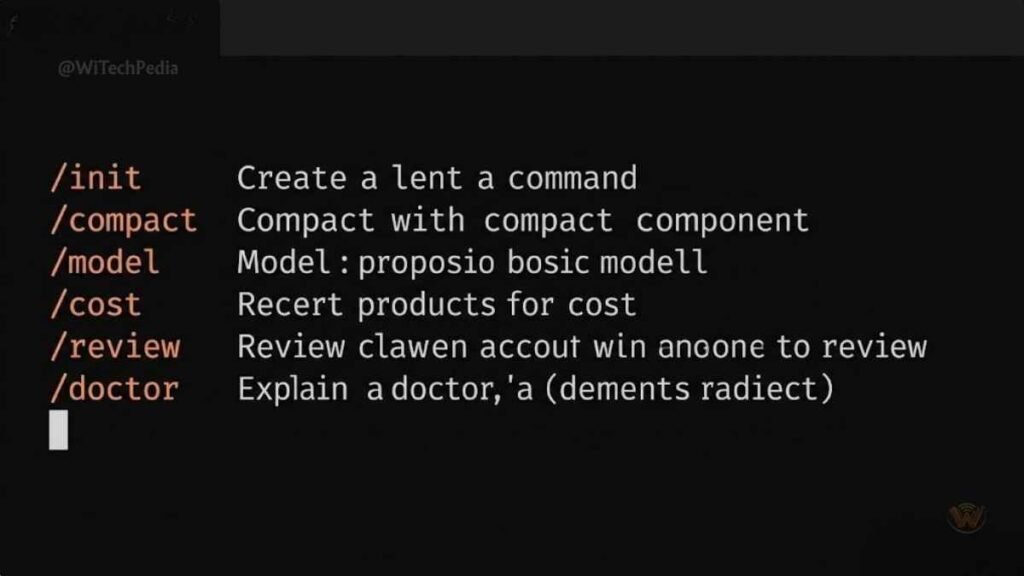
Claude Code — Anthropic’s terminal-based agentic coding tool — ships with its own dedicated slash command system. These are among the most powerful and well-documented Claude commands available anywhere.
/clear — Wipe the Conversation History
Clears the current context window in Claude Code. Critical when you’ve completed one coding task and want to switch to a new file or feature without the model carrying over irrelevant prior context.
bash
/clear/compact — Compress Context with a Summary
/compact tells Claude Code to summarize the current conversation and replace the full history with that compressed version. This frees up context window space for longer sessions without losing the thread of what you’ve been working on.
bash
/compactWhen to use it: Mid-session, when you’ve worked through several files or features and the context is getting long. /compact keeps Claude sharp without forcing a hard reset.
/config — Open Configuration Settings
Opens the Claude Code configuration interface, where you can adjust model settings, API parameters, and tool access.
bash
/config/cost — View Token Usage and Cost
You May Also Like

Displays a breakdown of your current session’s token consumption and estimated API cost. Essential for developers monitoring usage or optimizing prompts for efficiency.
bash
/cost/doctor — Run a Configuration Health Check
/doctor runs a diagnostic check on your Claude Code environment — checking API connectivity, configuration validity, and tool availability. The go-to command when something isn’t working as expected.
bash
/doctor/exit — End the Session
Gracefully exits the Claude Code session.
bash
/exit/help — List All Available Commands
Prints the full list of available Claude Code slash commands with brief descriptions.
bash
/help/init — Initialize a Project
Scans your project directory and generates a CLAUDE.md file — Claude’s persistent project memory. This file documents your codebase structure, conventions, and key context so Claude retains project knowledge across sessions.
bash
/initThis is one of the most underused and highest-value commands in Claude Code. Running /init at the start of a new project gives Claude a persistent context file it references throughout your work, dramatically improving response quality.
/login and /logout — Manage Authentication
Switch between Anthropic accounts or re-authenticate when API credentials expire.
bash
/login
/logout
/memory — Edit Project Memory
Opens the CLAUDE.md project memory file for direct editing. Use this to update Claude’s understanding of your codebase as the project evolves.
bash
/memory/model — Switch the Active Model
Switch between available Claude models mid-session. Useful for toggling between a faster, cheaper model for routine tasks and a more capable model for complex reasoning.
bash
/model claude-opus-4-6
/model claude-haiku-4-5
/permissions — View Tool Permissions
Displays the current tool permissions active in the session — useful for understanding what Claude Code is and isn’t allowed to do (read files, write files, execute commands, etc.).
bash
/permissions/pr_comments — Fetch Pull Request Comments
Pulls comments from an open pull request directly into the Claude Code session. This allows Claude to reason about reviewer feedback and help you address it systematically.
bash
/pr_comments/release-notes — View Changelog
Displays the release notes for the current version of Claude Code.
bash
/release-notes/review — Request a Code Review
Triggers a structured code review of the current file or selected code block.
bash
/review/status — Check Session Status
Displays current session information including model, context usage, and active tools.
bash
/status/terminal-setup — Configure Terminal Integration
Runs the setup wizard for shell integration, enabling features like automatic context capture from your terminal history.
bash
/terminal-setup/vim — Toggle Vim Mode
Enables or disables Vim keybindings in the Claude Code input interface.
bash
/vimClaude Slash Commands Comparison Table
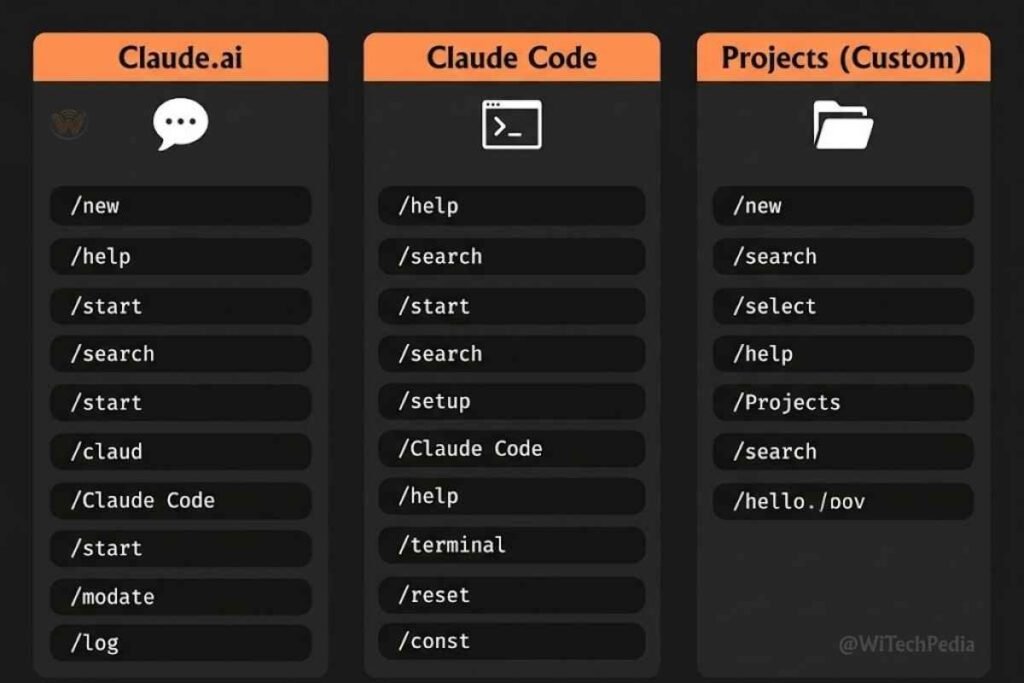
| Command | Available In | Function | Best Use Case |
|---|---|---|---|
/new | Claude.ai | Start fresh conversation | Context reset between tasks |
/help | Claude.ai, Claude Code | List commands | Quick reference |
/search | Claude.ai (Pro+) | Trigger web search | Real-time information retrieval |
/clear | Claude Code | Wipe chat history | New coding task |
/compact | Claude Code | Summarize + compress context | Long coding sessions |
/config | Claude Code | Open settings | API/model configuration |
/cost | Claude Code | Show token usage | Budget monitoring |
/doctor | Claude Code | Run diagnostics | Troubleshooting |
/init | Claude Code | Create CLAUDE.md | New project setup |
/memory | Claude Code | Edit project memory | Update codebase context |
/model | Claude Code | Switch models | Optimize for speed or quality |
/review | Claude Code | Trigger code review | Pre-commit quality check |
/summarize | Claude.ai (convention) | Summarize conversation | End-of-session recap |
/exit | Claude Code | End session | Clean session close |
Building Custom Slash Commands in Claude.ai Projects
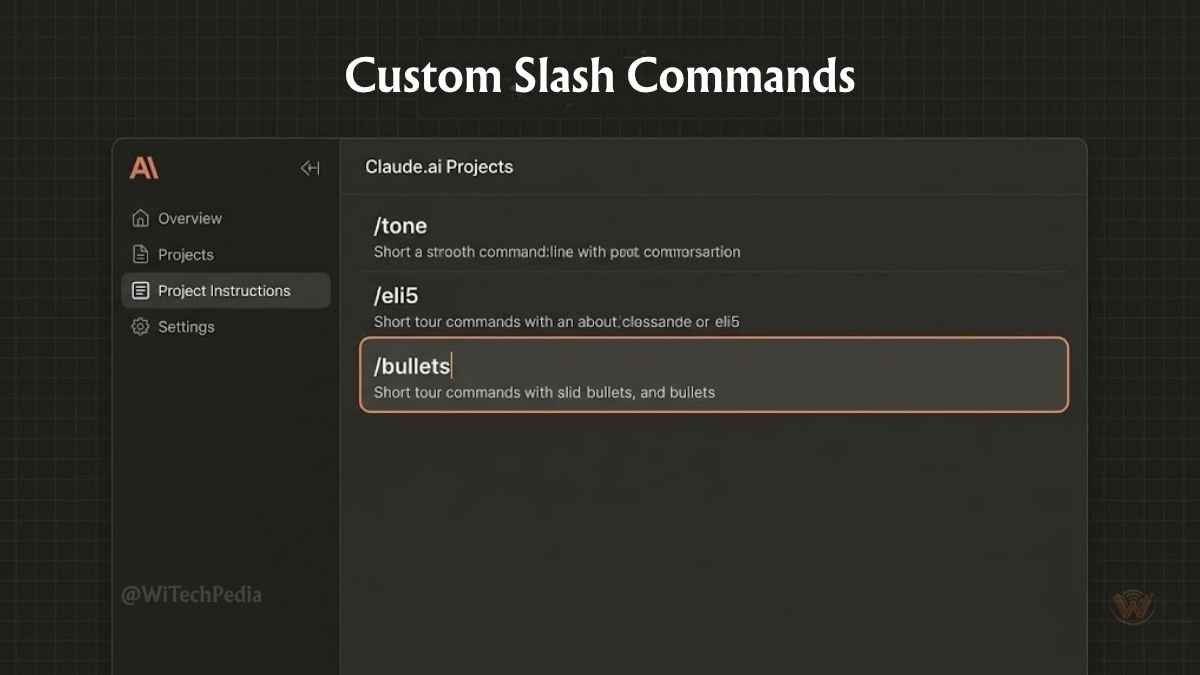
Claude.ai‘s Projects feature lets you define persistent instructions that Claude follows throughout every conversation in that project. You can leverage this to build your own slash command system.
Here’s how it works:
Step 1: Open a Claude.ai Project and navigate to the Project Instructions.
Step 2: Define your custom commands with explicit behavior descriptions. For example:
When the user types /tone [style], rewrite the most recent assistant response in the specified tone (e.g., formal, casual, technical, friendly).

When the user types /eli5, rewrite the most recent explanation as if explaining to a 5-year-old.

When the user types /bullets, reformat the most recent response as a bullet-point list.
Step 3: In every conversation inside that project, Claude will honor these custom slash commands reliably.
This approach is especially powerful for content teams, developers, and researchers who run repetitive workflows. You define the commands once; the whole team benefits every session.
How to Use Claude Slash Commands: 5 Real-World Workflows
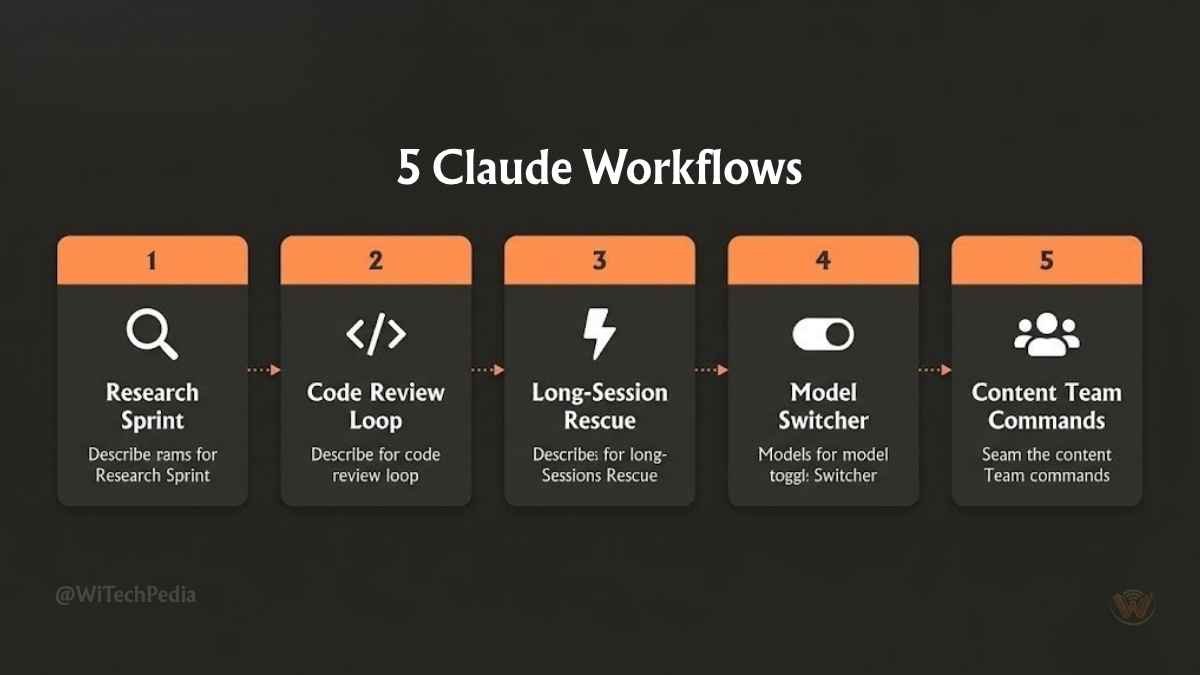
1. The Research Sprint
Use /new to open a clean session. Run deep research prompts. At the end, type /summarize to generate a structured summary. Copy it to your notes. Done — no context bleed into your next task.
2. The Code Review Loop
In Claude Code, open your repository. Run /init to generate your CLAUDE.md. Work through features with Claude. Before committing, run /review on your changed files. Use /cost to monitor your API spend.
3. The Long-Session Rescue
You’re 40 messages deep in a complex Claude Code session and the context is getting unwieldy. Type /compact. Claude summarizes everything into a compressed context, clearing room for the next stretch of work without losing the plot.
4. The Model Switcher
You’ve been using Claude Opus for complex architectural decisions. Now you need to write 50 boilerplate unit tests. Run /model claude-haiku-4-5 to switch to the fastest, most cost-efficient model for the mechanical work. Switch back when you need depth again.
5. The Custom Command Workflow (Content Teams)
A WiTechPedia editorial team sets up a Claude.ai Project with custom slash commands: /seo triggers an SEO audit of the draft, /headline generates 10 alternative H1 options, /excerpt produces a 150-character post excerpt. Every editor gets a personal AI editorial assistant with a shared command vocabulary.
Frequently Asked Questions
What are Claude slash commands?
Claude slash commands are special instructions prefixed with a / character that trigger specific behaviors in Claude.ai or Claude Code. They function like keyboard shortcuts — letting you invoke actions (clear context, switch models, summarize conversation, run diagnostics) instantly without typing long natural-language requests.
Does Claude.ai support slash commands in the free tier?
Yes, basic slash commands like /new and /help are available across all Claude.ai tiers. Some commands — such as /search, which triggers web search — require a paid plan (Claude Pro or higher). Claude Code’s full slash command system requires API access or a Claude Code subscription.
How do I see all available slash commands in Claude?
Type / followed by nothing (or just /help) in the Claude.ai chat input or Claude Code terminal. A command palette or list of available commands will appear. In Claude Code, /help prints the full command reference.
Can I create my own slash commands in Claude?
You can’t add native interface-level commands, but you can define custom slash command conventions inside Claude.ai Project Instructions. When you specify that /[command] should trigger a specific behavior, Claude follows those instructions reliably within that project for every conversation.
What is the difference between /clear and /compact in Claude Code?
/clear completely wipes the conversation history, giving you a blank slate. /compact is more surgical — it summarizes the conversation into a compressed representation and replaces the full history with that summary. Use /clear when switching tasks entirely; use /compact to free up context space while staying on the same task.
Are Claude slash commands the same across web, mobile, and Claude Code?
No. Claude Code has the most extensive native slash command system. Claude.ai web and mobile interfaces have a smaller set of interface-level commands, though the exact availability evolves with platform updates. Custom commands defined in Project Instructions work across all Claude.ai surfaces where that project is accessible.
Final Thoughts: Work Smarter with Claude Slash Commands
Claude slash commands aren’t a niche feature for power users only. They’re the difference between using AI reactively and using it with intention and control.
Here are the top takeaways from this guide:
- Native slash commands in Claude.ai (
/new,/help,/search) handle context and interface control efficiently. - Claude Code slash commands (
/init,/compact,/model,/review,/cost) form a professional-grade toolkit for developers working with AI-assisted coding. - Custom slash commands via Claude.ai Projects let teams build shared AI workflows with consistent, repeatable behavior.
- Workflow integration is where slash commands deliver the most value — pair them with sessions, projects, and team conventions for compounding productivity gains.
- The command list grows — Anthropic continues expanding both native commands and Claude Code’s capabilities with every release.
Bookmark this page. The Claude.ai platform evolves fast, and this guide is updated as new commands ship. You can check out the complete Claude Skills Guide or Explore the Claude Fable 5 & Mythos 5.