








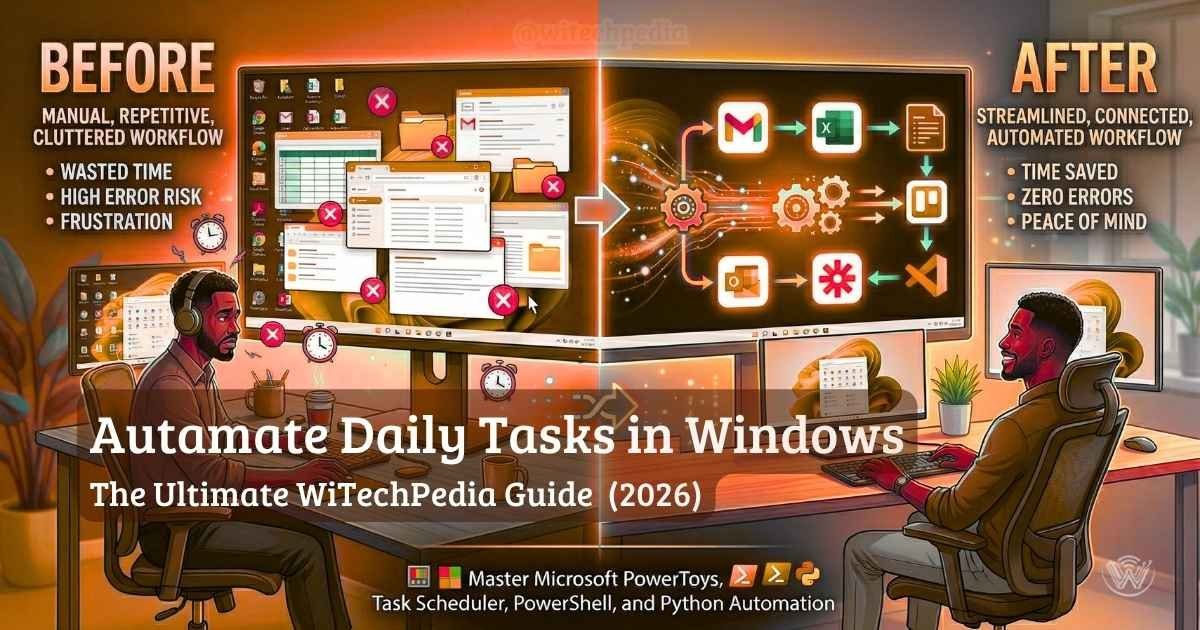
The average digital professional wastes hundreds of hours every year on repetitive, mind-numbing computer chores. Moving files, backing up folders, extracting data, and launching the same five applications every morning drains your energy. It is time to stop acting like a robot and start commanding your PC like one.
If you want to reclaim your productivity this year, learning how to automate tasks in Windows is the most valuable technical skill you can acquire. Whether you are a beginner looking to speed up daily routines or a developer optimizing workflows, this guide will show you exactly how to put your operating system on autopilot.
Why You Must Automate Tasks in Windows
Modern operating systems are incredibly powerful, yet most users barely scratch the surface of their capabilities. When you automate repetitive tasks in Windows 11, you eliminate human error, ensure critical processes (like security backups) happen on time, and free up mental bandwidth for deep work.
The best part? You do not need to be a software engineer to get started. Windows now includes powerful, user-friendly tools right out of the box. Before diving into the technical steps on how to automate tasks in Windows, it helps to understand the immediate benefits:
The Best Windows Automation Tools Compared
Before diving into the tutorials, let’s look at the best Windows automation tools available in 2026. Choosing the right tool depends entirely on your technical comfort level and the complexity of the task.
| Automation Tool | Skill Level | Best Use Case | Built-In to Windows? |
| Task Scheduler | Beginner | Launching apps, running maintenance, scheduled triggers. | Yes |
| Power Automate Desktop | Intermediate | UI automation, web scraping, multi-app workflows. | Yes (Windows 11) |
| Batch/PowerShell Scripts | Advanced | Bulk file operations, system configuration, dev-ops. | Yes |
| AutoHotkey (AHK) | Advanced | Custom keyboard shortcuts, complex macro generation. | No (Free Open-Source) |
How to Automate Tasks in Windows: The Ultimate Guide
There are so many tasks which you can automate for free if you know how to do that. Here are complete step by step guide of basic to advanced automation guide. If you’re new to Windows 11, check out our guide on How to optimize Your PC to boost performance.
Built-In Power: Windows Task Scheduler Guide
The Windows Task Scheduler has been a staple of the operating system for decades, and it remains one of the most reliable ways to handle time-based automation. It operates on a simple “trigger and action” logic.

What is the Windows Task Scheduler?
Task Scheduler is a native Windows application that acts as an alarm clock for your computer’s programs and scripts. It executes actions behind the scenes based on conditions you define.
How to Schedule a Program to Run Automatically
Setting up your first scheduled task takes less than two minutes. Here is how to launch your daily work environment (like your browser and email client) every morning at 8:00 AM:
- Press the Windows Key, type
Task Scheduler, and hit Enter. - In the right-hand Actions pane, click Create Basic Task.
- Name your task (e.g., “Morning Workspace Launch”) and click Next.
- Choose your Trigger (select Daily and set the time to 8:00 AM).
- Choose your Action (select Start a program).
- Browse for the application executable (e.g.,
chrome.exeoroutlook.exe) and click Finish.
Pro Tip: You can chain multiple actions to a single trigger, allowing you to launch an entire suite of tools simultaneously. For deep-dive technical documentation on triggers, refer to Microsoft’s official Task Scheduler resources.
Next-Gen Automation: Windows Power Automate Tutorial
While Task Scheduler is great for background processes, Microsoft has revolutionized desktop automation with a visual, low-code platform.
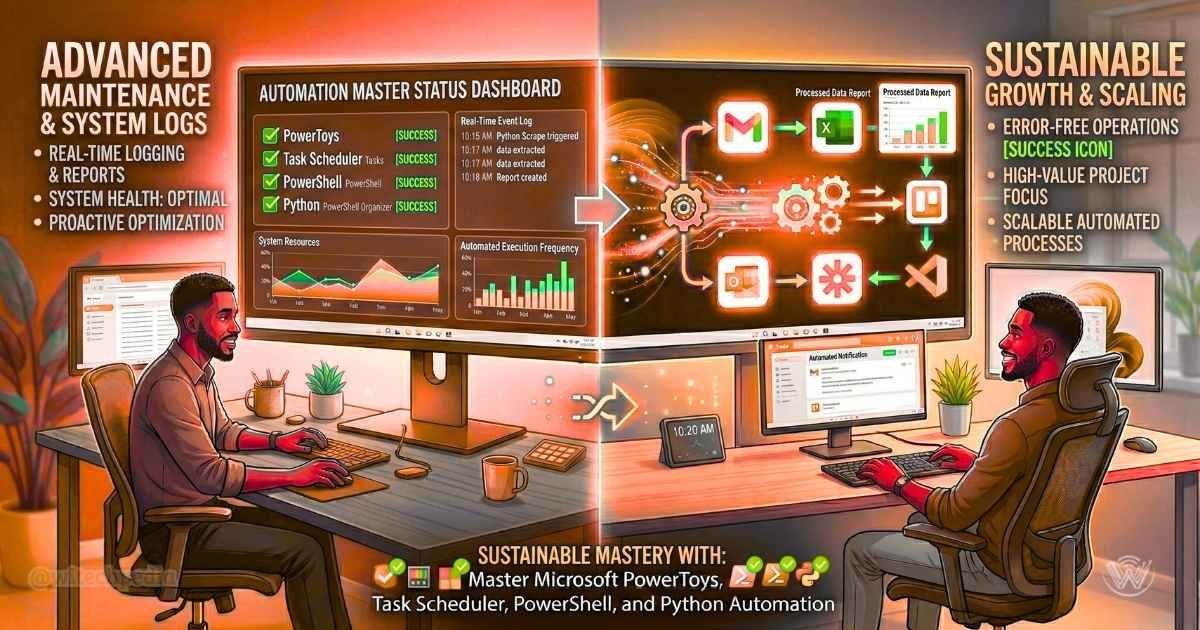
What is Microsoft Power Automate Desktop?
Microsoft Power Automate Desktop is an enterprise-grade Robotic Process Automation (RPA) tool included entirely for free in Windows 11. Instead of writing code, you drag and drop actions into a visual workflow. It can click buttons, read Excel spreadsheets, extract text from PDFs, and interact with web pages exactly like a human user would.
Create Automated Scripts for PC Without Coding
To build your first Power Automate workflow:
- Open Power Automate from your Windows 11 Start menu.
- Click + New Flow and give it a descriptive name.
- Use the left-hand panel to search for actions. For example, drag the Launch Excel action into your workspace.
- Drag a Web Automation action to extract data from a specific URL.
- Link the actions so the web data is automatically pasted into your Excel sheet, then hit Save.
This platform essentially acts as a highly intelligent Windows macro recorder, letting you record your screen clicks and play them back at lightning speed.
Advanced Workflows: Batch Script Automation Windows
For users comfortable with a command-line interface, batch script automation Windows workflows offer unparalleled speed and minimal resource consumption. Batch files (.bat) execute a series of Command Prompt instructions instantly.

Using Scripts to Automate File Organization in Windows
Do you have a messy “Downloads” folder? You can write a three-line script to clean it up automatically.
Open Notepad and paste the following code to move all downloaded images into a dedicated Pictures folder:
@echo off
move C:\Users\YourName\Downloads\*.jpg C:\Users\YourName\Pictures\
move C:\Users\YourName\Downloads\*.png C:\Users\YourName\Pictures\
exit
Save the file as CleanDownloads.bat. You can now run this script manually whenever your folder gets cluttered, or link it to Task Scheduler to run every Friday at 5:00 PM.
For more tips on keeping your digital environment secure and optimized, browse our How to Remove Malware from Windows.
Third-Party Windows Automation Tools Worth Trying
If you want to push beyond the native tools, consider these industry standards:
Frequently Asked Questions (FAQ)
How do I automate tasks in Windows for free?
You can easily automate tasks in Windows using free, built-in tools like the Task Scheduler for time-based triggers, Power Automate Desktop for visual workflow automation, and Command Prompt/PowerShell for script-based automation. No paid third-party software is strictly necessary.
Does Windows 11 have a built-in macro recorder?
Yes. Microsoft Power Automate Desktop, which comes pre-installed in Windows 11, features a powerful Desktop Recorder. It allows you to record your mouse clicks and keystrokes across different applications and convert them into an editable, automated flow.
Is Power Automate better than Task Scheduler?
They serve different purposes. Task Scheduler is better for lightweight, invisible background tasks triggered by time or system events (like booting up). Power Automate is vastly superior for complex, multi-step workflows that require interacting with user interfaces, websites, and documents.
What is the difference between Task Scheduler and Power Automate?
Task Scheduler is a traditional, built-in tool for triggering scripts and local programs based on system events or time. Power Automate is a modern, visual, low-code platform designed to connect desktop actions with cloud services and web APIs.
How can I automate repetitive tasks in Windows 11 safely?
Always thoroughly test your automated workflows in a secure environment before setting them on a recurring schedule. Avoid automating destructive actions (like mass-deleting files) until you are 100% certain the logic is flawless. Stick to Microsoft’s native tools to ensure your automations remain secure.
Do I need programming skills to create automated scripts for PC?
No. While knowing Python or PowerShell unlocks advanced capabilities, tools like Power Automate Desktop use a drag-and-drop, low-code interface. If you can understand basic logic (e.g., “If X happens, then do Y”), you can build highly effective automated scripts for your PC.
Summary: Reclaim Your Time with Windows Automation
Learning to leverage your operating system’s built-in tools is a game-changer for personal and professional productivity. You no longer have to be a seasoned programmer to build sophisticated, time-saving workflows.
Key Takeaways:
- Start Simple: Use the Windows Task Scheduler to automate basic app launches and daily maintenance.
- Embrace Low-Code: Utilize Power Automate Desktop to record complex, multi-app workflows without writing a single line of code.
- Deploy Scripts for Speed: Use simple Batch files to instantly organize files, move data, and clean up your directories.
- Mix and Match: The most efficient users combine these tools, using Task Scheduler to trigger their advanced Power Automate workflows.
Ready to level up your tech knowledge even further? Stay ahead of the curve by subscribing to the WITechPedia newsletter, and keep an eye out for our highly anticipated digital release: The Beginner’s Guide to AI Terminology. Stop doing busywork, and let your machine do what it was built to do!