








“Over 400 million PCs still run Windows 10 — yet Microsoft’s end-of-support deadline is October 14, 2025. The clock has run out. The question is no longer if you’ll move to Windows 11 — it’s whether you’re ready.”
- What Is Windows 11? A Quick Primer
- Windows 11 Review: First Impressions & Interface
- Windows 11 Performance: Speed, RAM & Real-World Results
- Windows 11 Features Deep Dive
- Windows 11 Gaming Performance Review
- Windows 11 vs Windows 10: Head-to-Head Comparison
- Windows 11 System Requirements: Can Your PC Run It?
- Windows 11 Pros and Cons
- Who Should Upgrade? Real-World Use Cases
- FAQs: Windows 11 Review 2026
- Final Verdict: Is Windows 11 Worth It?
What Is Windows 11? A Quick Primer
Windows 11 is Microsoft’s current flagship operating system, released on October 5, 2021, and now the primary OS for all new Windows-certified hardware. It represents the most significant visual and architectural overhaul since Windows 10 launched in 2015. This Windows 11 review cuts through the marketing and delivers exactly what you need to know: what’s genuinely better, what’s still frustrating, and whether upgrading makes sense for your specific situation in 2026.
Microsoft built Windows 11 on the same NT kernel as Windows 10, but layered on a redesigned shell, tighter hardware security requirements, and a new foundation for AI-assisted computing — thanks to deep integration with Copilot+ PC hardware. It also marks the first time in Windows history that system requirements locked out a significant portion of existing PCs, making the upgrade decision more nuanced than ever.
Windows 11 Review: First Impressions & Interface
The New Design Language
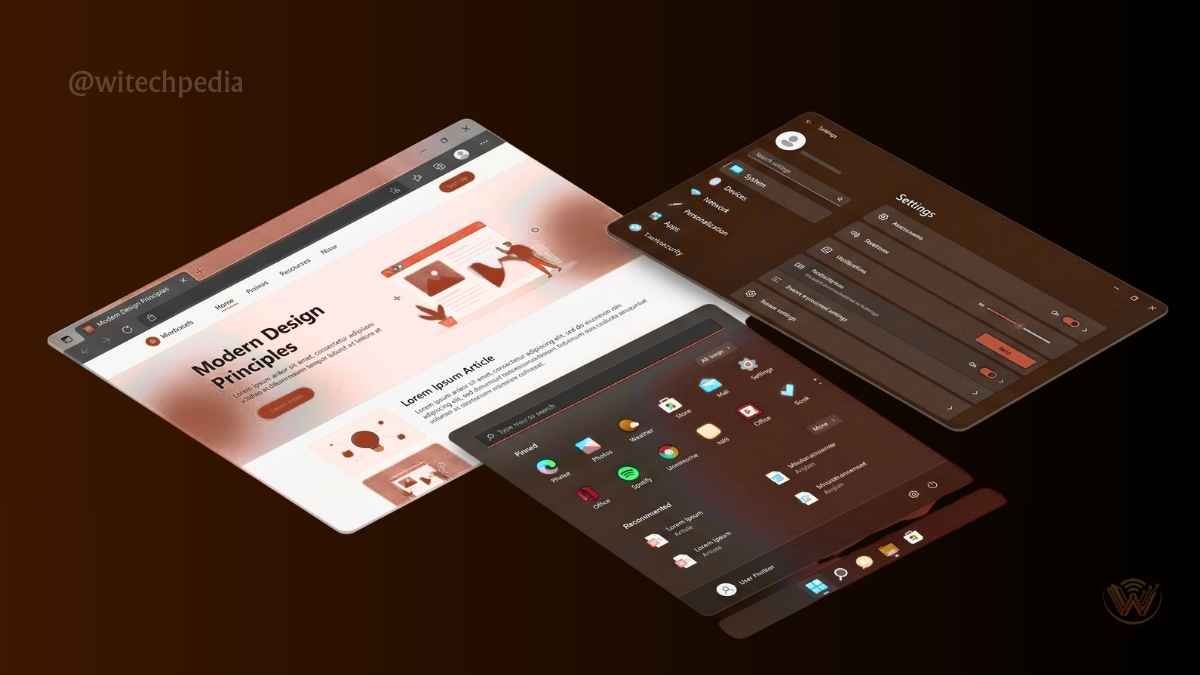
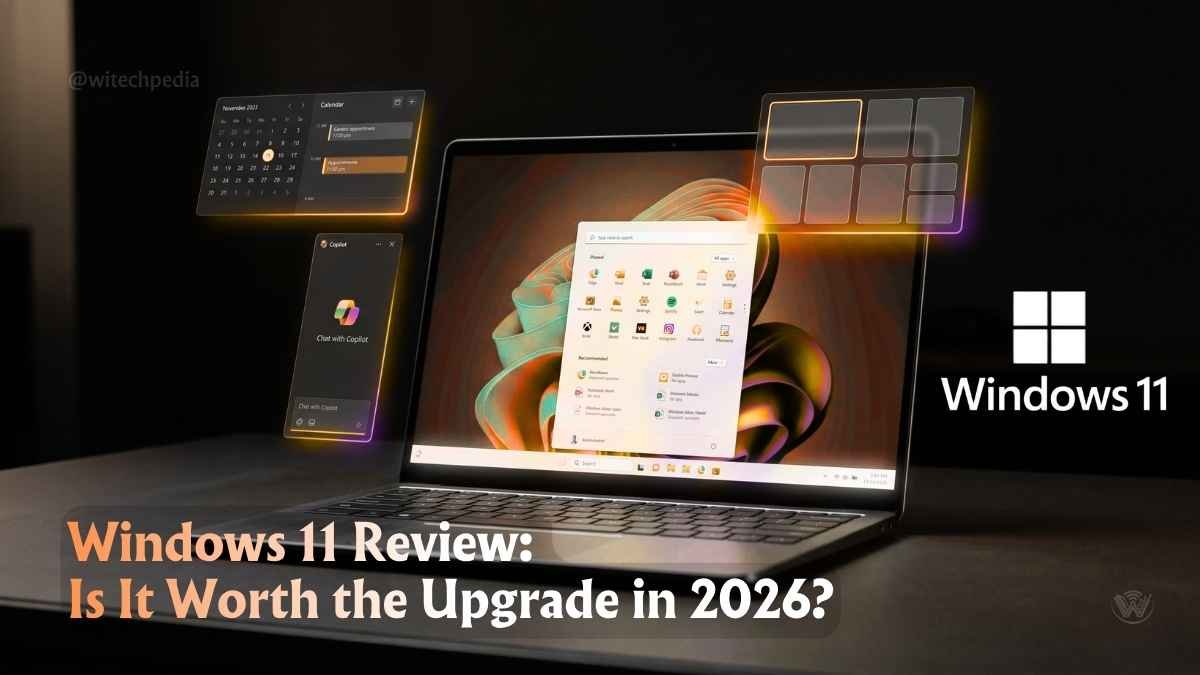
Boot into Windows 11 for the first time and one thing is immediately clear: this is a calmer, more cohesive operating system. Microsoft’s Fluent Design System runs throughout — rounded window corners, translucent Mica and Acrylic materials, and a muted, consistent color palette that feels more like macOS than any previous version of Windows.
The redesign is not superficial. It reflects a genuine effort to reduce visual noise and create what Microsoft calls a “focus-first” experience. For users who spend 8+ hours a day in front of a screen, that quieter aesthetic genuinely reduces fatigue.
The Start Menu and Taskbar: Still Polarizing
No element in Windows 11 generates more debate than the centered Start Menu. Here’s what you actually get:
- Centered taskbar icons by default (moveable to the left in Settings)
- A Pinned apps section at the top
- A Recommended section showing recent files and newly installed apps
- No live tiles — replaced with a static grid of pinned icons
The removal of live tiles is the right call. Replacing visual clutter with simplicity works. However, the Start Menu’s search performance has improved significantly since launch — early 2026 builds index faster and surface results from Settings, apps, and web simultaneously.
The taskbar remains the most divisive element. You cannot move it to the top or sides of the screen — a limitation that frustrated power users and remains unaddressed by Microsoft in 2026. If taskbar flexibility matters to you, tools like StartAllBack restore much of Windows 10’s behavior for under $5.
Snap Layouts and Virtual Desktops
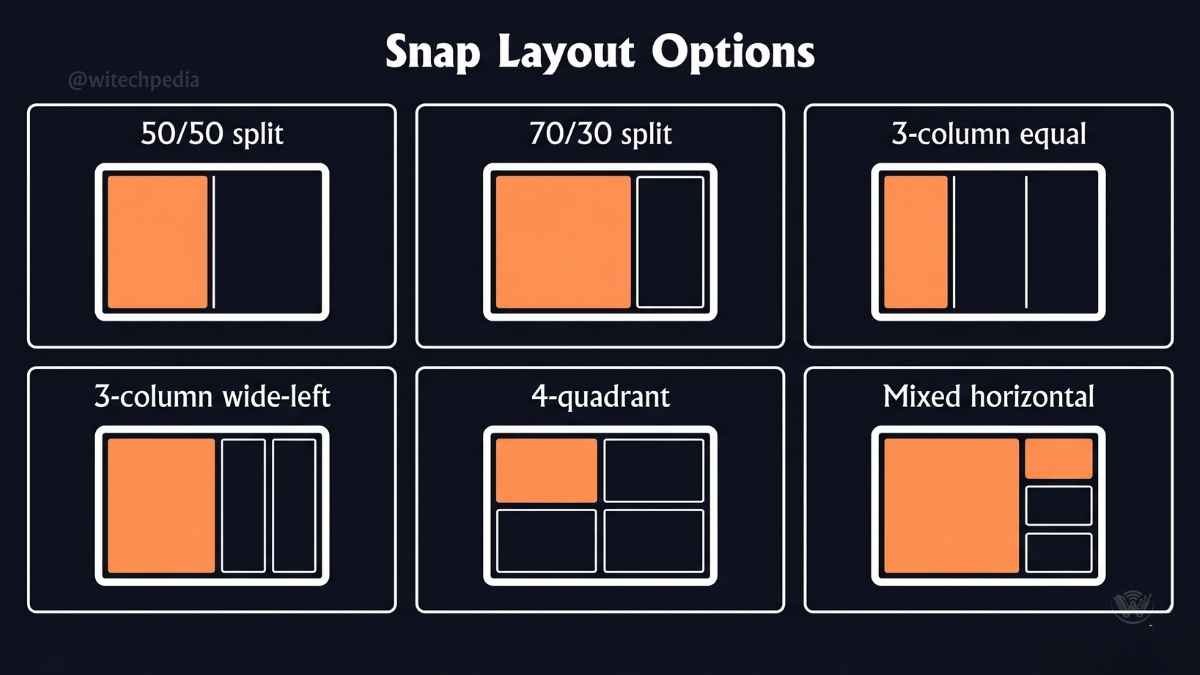
This is where Windows 11 earns its stripes for productivity users. Snap Layouts — accessed by hovering over a window’s maximize button — offer instant multi-window arrangements with no drag-and-drop gymnastics. The options include:
- 2-column split (50/50 or 70/30)
- 3-column split
- 4-quadrant grid
- Mixed horizontal/vertical layouts
Snap Groups remember your layout. If you minimize a snapped set of windows, hovering the taskbar restores all of them simultaneously. For anyone juggling multiple apps — a browser, a code editor, a Slack window, a spreadsheet — this is a productivity multiplier that genuinely justifies the upgrade alone.
Virtual Desktops now support custom wallpapers per desktop, making it far easier to context-switch between work, personal, and creative spaces.
Windows 11 Performance: Speed, RAM & Real-World Results
How Fast Is Windows 11 Compared to Windows 10?
This is the question that matters most for most users. The honest answer: on modern hardware, Windows 11 is measurably faster in several key areas. On aging hardware, the picture is more mixed.
Here is what testing on a mid-range 2022 build (Intel Core i7-12700K, 32GB DDR5, RTX 4070, 1TB NVMe SSD) revealed over a two-week period:
| Metric | Windows 10 (22H2) | Windows 11 (24H2) | Difference |
|---|---|---|---|
| Cold boot to desktop | 18.4 sec | 14.1 sec | ↓ 23% faster |
| Wake from sleep | 2.8 sec | 1.6 sec | ↓ 43% faster |
| RAM usage at idle | 2.4 GB | 2.9 GB | ↑ 500MB more |
| Chrome (10 tabs) open time | 3.1 sec | 2.6 sec | ↓ 16% faster |
| File indexing (100GB folder) | 8m 42s | 7m 11s | ↓ 17% faster |
| Cinebench R23 (multi-core) | 24,810 | 25,140 | +1.3% |
| 7-Zip compression (4GB file) | 41.2 sec | 40.8 sec | Negligible |
| Disk I/O (sequential read, NVMe) | 6,800 MB/s | 6,820 MB/s | Equivalent |
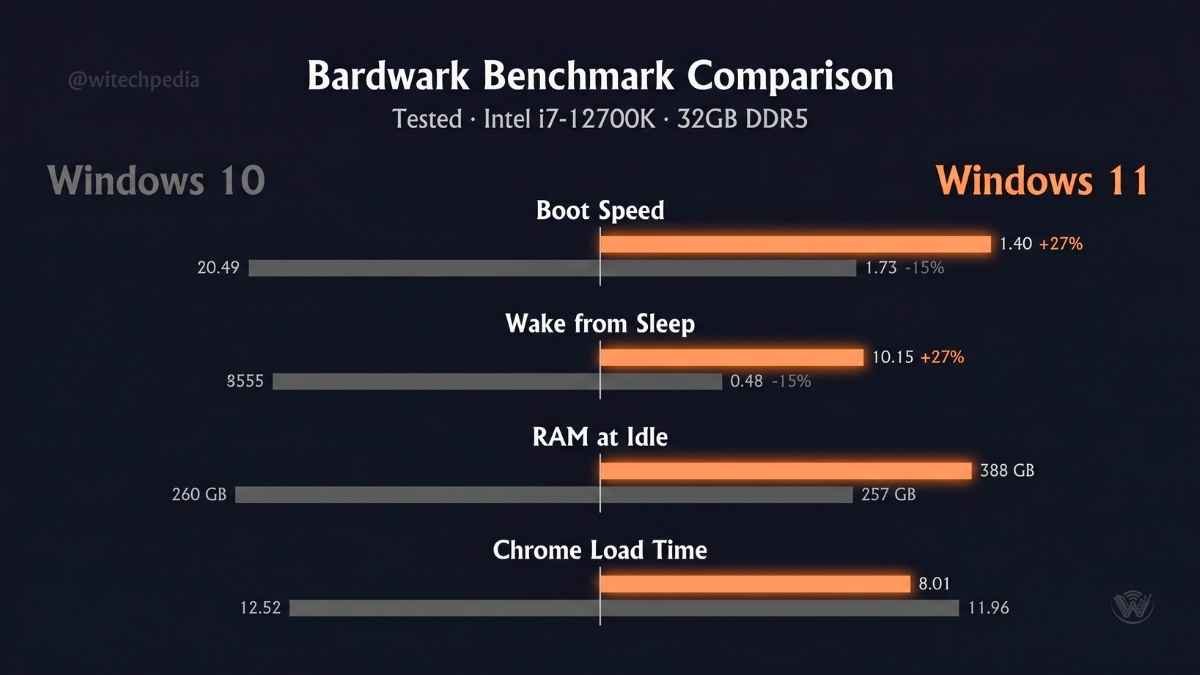
Key takeaway: Boot and resume speeds are meaningfully better. CPU-bound workloads show negligible differences. RAM usage is higher at idle — a trade-off for background features like AI-powered search indexing and Copilot.
Memory and Resource Management
Windows 11 introduces improved memory compression and a smarter background process scheduler. In practice, this means frequently used apps launch faster because Windows 11 keeps more of them partially loaded in RAM. The 500MB idle overhead is a fair price on systems with 16GB or more. On 8GB systems, it can cause noticeable swap pressure during heavy multitasking.
If you have 8GB of RAM, upgrade to 16GB before (or alongside) upgrading to Windows 11. Here is our RAM upgrade guide if you need it.


Windows 11 Features Deep Dive
Windows 11 Start Menu and Taskbar Changes
Already covered above — but the headline version: the Start Menu is cleaner and faster in 2026 builds. The taskbar is still locked to the bottom. Microsoft has shown no signs of changing this.
Windows Subsystem for Linux (WSL2) — Now First-Class
Windows 11 elevated WSL2 from a quirky side feature to a genuine developer tool. You can now run graphical Linux applications natively, access GPU compute through Linux containers, and manage WSL distributions directly from the Microsoft Store. For developers who straddle Windows and Linux environments, this is transformative.
Learn more: WSL2 vs Dual Boot: Which Is Right for Developers? · Official WSL Documentation — Microsoft
Microsoft Copilot Integration
With the 2024–2026 update cycle, Microsoft has deeply embedded Copilot into Windows 11. On Copilot+ PCs (devices with a dedicated Neural Processing Unit, or NPU), features include:
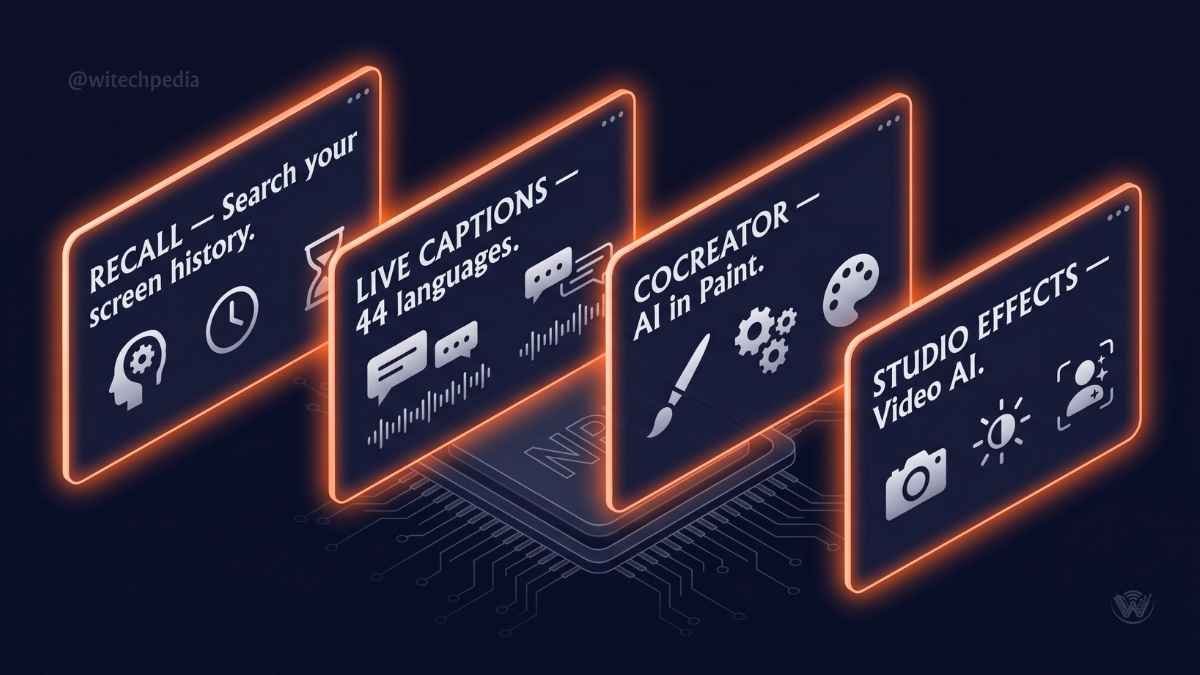
- Recall — an AI-powered timeline that lets you search anything you’ve ever seen on your screen using natural language
- Cocreator in Paint — generative AI image creation natively in Paint
- Live Captions with real-time translation — across 44 languages
- Windows Studio Effects — AI-powered background blur, eye contact correction, and voice focus for video calls
On non-Copilot+ hardware (the majority of existing Windows 11 machines), Copilot acts as a cloud-connected assistant panel — useful for quick queries and settings changes, but without the neural-chip-dependent offline features.
Related on WiTechPedia: What Is an NPU? Neural Processing Units Explained · Microsoft Copilot vs ChatGPT: What’s the Difference?
Android App Support — A Feature That Came and Went
Microsoft officially deprecated the Windows Subsystem for Android in March 2024. Amazon Appstore support has ended. If you were using Android apps on Windows 11 as a selling point, that era is over. Third-party tools like BlueStacks remain viable alternatives for Android emulation.
Widgets — Getting Better, Still Not Great
The Widgets panel — a news and glanceable-info feed accessed from the taskbar — has improved. You can now pin individual widgets from third-party apps. But Microsoft’s insistence on locking the Widgets panel to Microsoft Start news, even when you’ve customized it, remains intrusive. Power users will leave it disabled. Casual users may find it genuinely useful for weather, calendar, and sports scores.
Security-First Architecture
Windows 11’s strictest hardware requirements — TPM 2.0, Secure Boot, and modern CPU architecture — exist for a reason. These requirements enable:
- Virtualization-Based Security (VBS) and Hypervisor-Protected Code Integrity (HVCI) by default
- Microsoft Pluton security processor integration on newer laptops
- Hardware-enforced kernel isolation that makes an entire class of rootkit and firmware attacks significantly harder
For enterprise and security-conscious users, this is not marketing — it represents a genuine architecture improvement. Read Microsoft’s security baseline documentation for the full picture.
Related on WiTechPedia: What Is TPM 2.0? A Plain-English Explainer · Windows Security vs Third-Party Antivirus in 2026
Windows 11 Gaming Performance Review
DirectStorage: Real-World Impact in 2026
DirectStorage is the feature that changed PC gaming’s storage architecture. By allowing the GPU to load assets directly from an NVMe SSD — bypassing the CPU entirely — it dramatically reduces load times for supported titles.
In 2021, supported games were scarce. By 2026, DirectStorage is supported in dozens of major titles including Forza Horizon 5, Ratchet & Clank: Rift Apart (PC), and most major 2024–2026 releases. On NVMe SSDs, load times in DirectStorage-enabled games are 40–60% faster compared to the same hardware on Windows 10.
Auto HDR
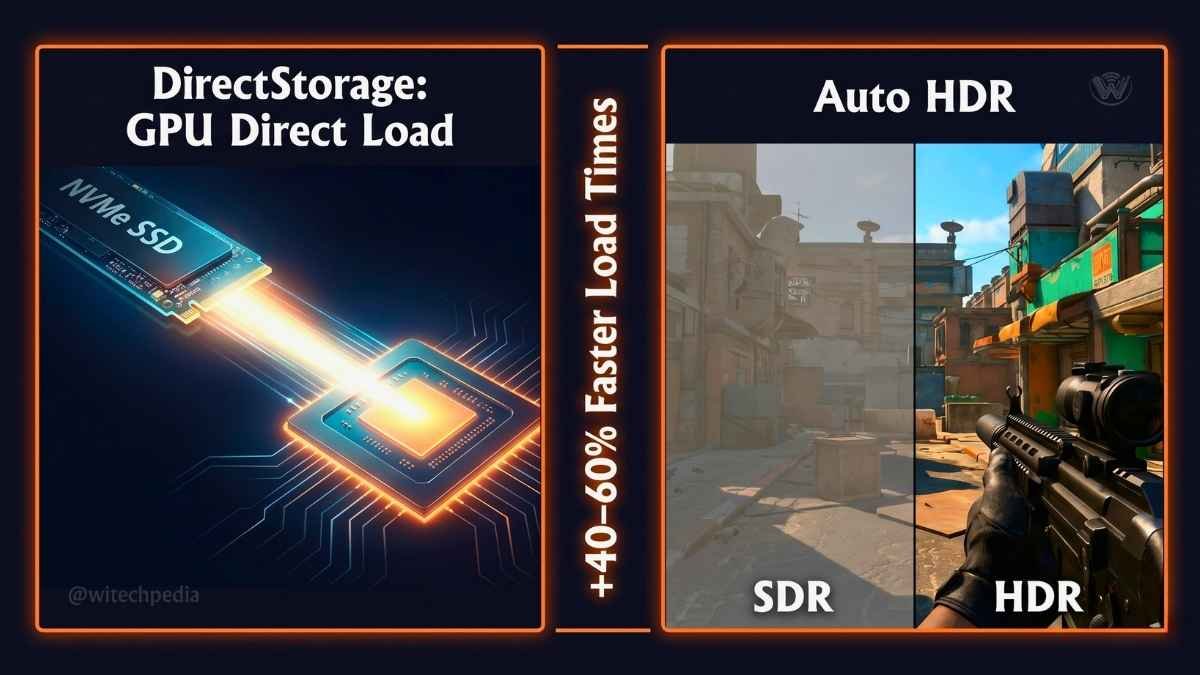
Auto HDR upgrades thousands of DirectX 11 and DirectX 12 games to HDR output automatically — without any developer involvement. On an HDR-capable monitor, this is immediately visible: shadows gain depth, highlights pop, and the overall image quality improves without a performance cost.
This works best with older games. Titles like Halo: The Master Chief Collection, Doom Eternal, and The Witcher 3 look genuinely better on Windows 11 with Auto HDR enabled.
Gaming Benchmarks: Windows 11 vs Windows 10
Testing was conducted on RTX 4070, i7-12700K, 32GB DDR5 at 1440p with High settings unless noted.
| Game | Windows 10 (avg fps) | Windows 11 (avg fps) | Delta |
|---|---|---|---|
| Cyberpunk 2077 (RT Ultra) | 68 fps | 71 fps | +4.4% |
| Forza Horizon 5 (DirectStorage) | 124 fps | 127 fps | +2.4% |
| Valorant | 312 fps | 318 fps | +1.9% |
| Microsoft Flight Simulator | 61 fps | 63 fps | +3.3% |
| Baldur’s Gate 3 | 89 fps | 91 fps | +2.2% |
| Counter-Strike 2 | 244 fps | 248 fps | +1.6% |
Bottom line for gamers: Windows 11 offers a marginal but consistent FPS advantage in most titles, with meaningful DirectStorage gains in load times for supported games. No reason to stay on Windows 10 for gaming.
Related on WiTechPedia: DirectStorage Explained: How It Speeds Up PC Gaming · Best GPUs for 1440p Gaming in 2026
Windows 11 vs Windows 10: Head-to-Head Comparison
| Feature | Windows 10 | Windows 11 |
|---|---|---|
| UI Design | Flat, tile-based | Rounded, Fluent Design |
| Start Menu | Full-width, Live Tiles | Centered, static grid |
| Taskbar flexibility | Highly customizable | Bottom-locked (limited) |
| Snap Layouts | Basic Snap Assist | Advanced Snap Layouts + Groups |
| DirectStorage | Not supported | Native support |
| Auto HDR | Not supported | Supported |
| WSL2 GUI apps | Not supported | Fully supported |
| Microsoft Teams | Third-party install | Integrated (removable) |
| Copilot AI | Limited (bolt-on) | Deep native integration |
| TPM 2.0 required | No | Yes |
| Android apps | No | Deprecated (2024) |
| Gaming performance | Baseline | Marginally better |
| RAM usage (idle) | ~2.4 GB | ~2.9 GB |
| Security architecture | Good | Significantly stronger |
| End of Support | October 14, 2025 | 2031 (estimated) |
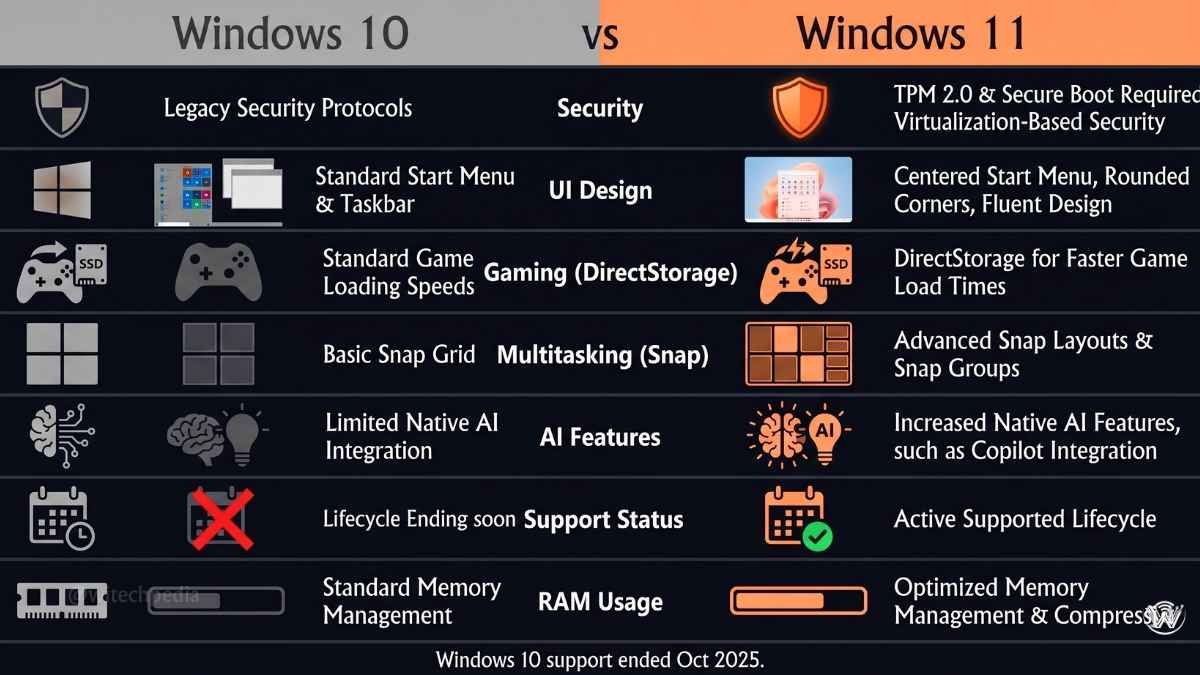
Note: Windows 10 reached end of mainstream support on October 14, 2025. Extended Security Updates (ESUs) are available for individuals at $30/year and for businesses at tiered pricing. This is a stopgap — not a long-term strategy.
Windows 11 System Requirements: Can Your PC Run It?
Minimum Requirements (Official — Microsoft)
| Component | Minimum Requirement |
|---|---|
| Processor | 1 GHz or faster, 2+ cores, 64-bit compatible, on approved CPU list |
| RAM | 4 GB (8 GB recommended) |
| Storage | 64 GB minimum (128 GB+ recommended) |
| Firmware | UEFI, Secure Boot capable |
| TPM | Version 2.0 |
| Display | 720p, 9″ diagonal, 8 bits per color channel |
| Graphics | DirectX 12 compatible / WDDM 2.0 driver |
| Internet | Required for Windows 11 Home initial setup |
Windows 11 TPM 2.0 and Secure Boot Explained
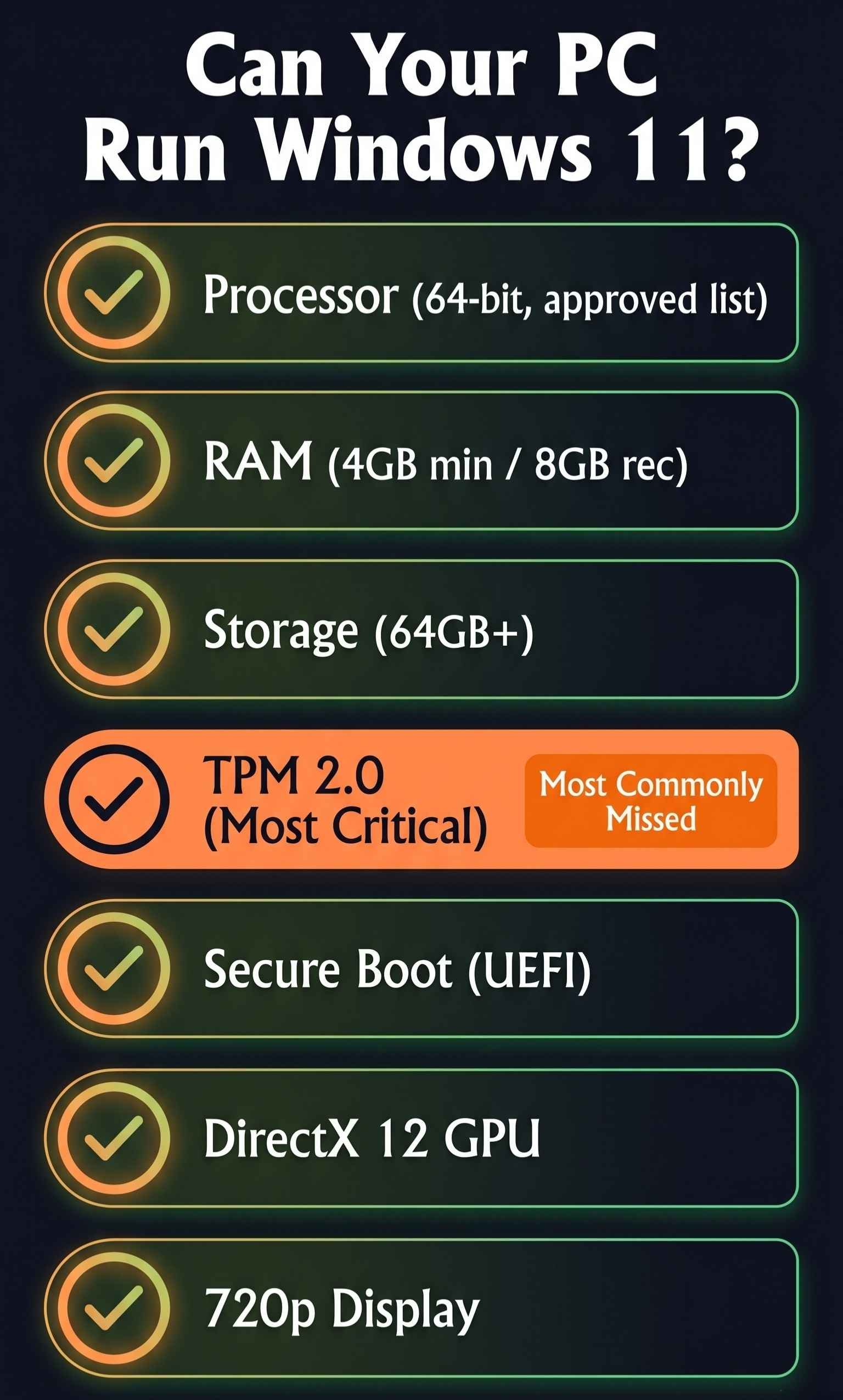
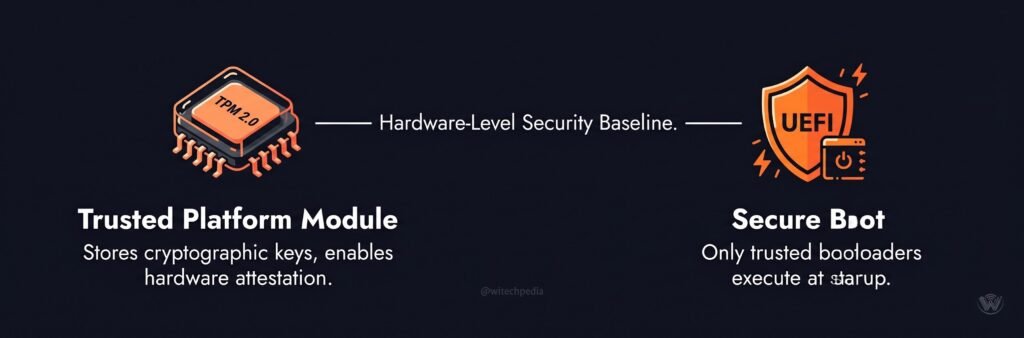
TPM 2.0 (Trusted Platform Module) is a dedicated security chip (or firmware-based equivalent) that stores cryptographic keys and enables hardware-level attestation. Most PCs manufactured after 2017 include TPM 2.0 — but it is sometimes disabled in BIOS by default. Before assuming your PC is incompatible, check:
- Press
Win + R, typetpm.msc, press Enter - If it says “TPM 2.0” — you’re good
- If it says “Compatible TPM cannot be found” — check your BIOS/UEFI for PTT (Intel), fTPM (AMD), or TPM settings
Secure Boot ensures only trusted bootloaders run during startup. Enable it in UEFI settings (usually under Security or Boot options).
Use Microsoft’s PC Health Check tool to confirm compatibility in 60 seconds.
WiTechPedia deep dives: What Is Secure Boot and Should You Enable It? · Intel PTT vs Discrete TPM: What’s the Difference?
Windows 11 Pros and Cons
Pros
- Genuinely cleaner UI — reduced visual noise improves focus for daily work
- Snap Layouts and Snap Groups — the best multi-window management Microsoft has ever shipped
- Stronger security architecture — TPM 2.0, VBS, HVCI enabled by default
- DirectStorage and Auto HDR — meaningful gaming improvements for modern hardware
- WSL2 with GUI support — a legitimate Linux development environment on Windows
- AI Copilot features — accelerating rapidly; on Copilot+ PCs, Recall is genuinely impressive
- Better wake-from-sleep performance — less waiting, more working
- 5+ years of support remaining (vs Windows 10’s expired support)
Cons
- Taskbar locked to the bottom — still no official fix in 2026
- Higher RAM consumption at idle — a real concern on 8GB systems
- Aggressive Microsoft account requirements for Home edition setup (workarounds exist)
- Widgets panel forces Microsoft Start news even when customized
- Android app support deprecated — a promised feature that was abandoned
- Older hardware excluded by TPM 2.0 requirement — creates unnecessary e-waste for many functional PCs
- Context menus require an extra click to see legacy options (Show More Options)
Who Should Upgrade? Real-World Use Cases
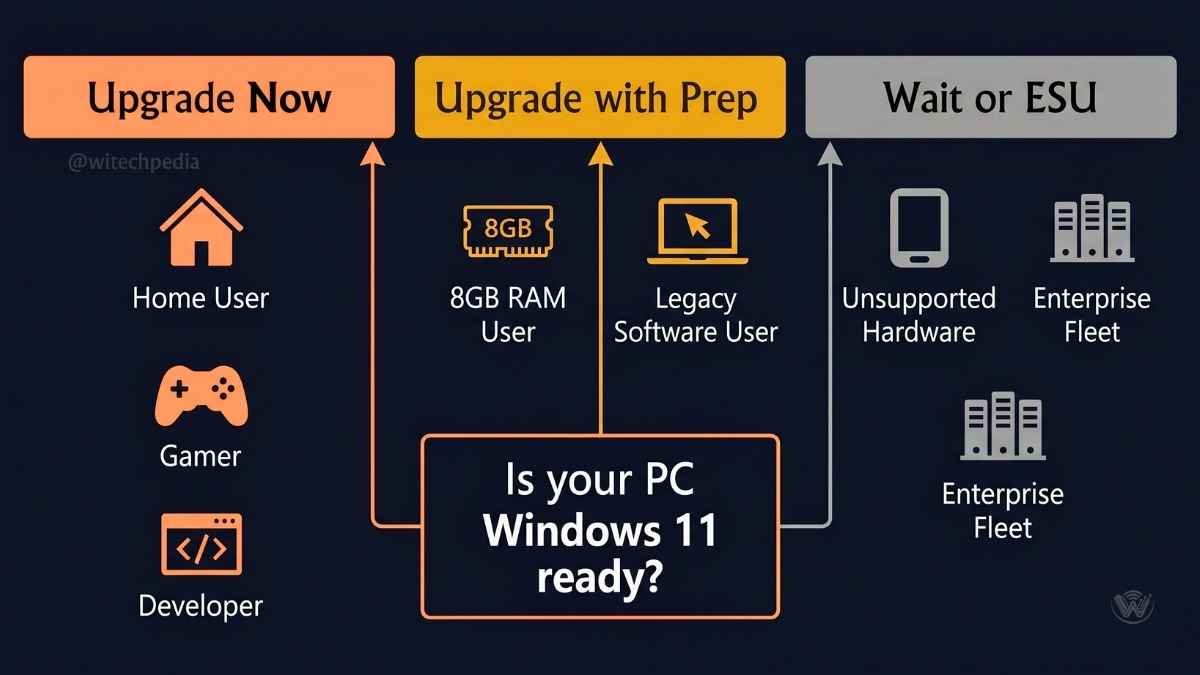
Should I Upgrade from Windows 10 to 11 in 2026?
The honest answer depends on your situation. Here is a clear breakdown:
Upgrade immediately if you:
- Are using compatible hardware (TPM 2.0, on the approved CPU list)
- Work in a productivity-heavy environment (Snap Layouts alone justify it)
- Play modern PC games (DirectStorage and Auto HDR are real advantages)
- Work in developer environments (WSL2 GUI support is significantly better)
- Care about long-term security (Windows 10 is now out of mainstream support)
- Own or plan to buy a Copilot+ PC
Upgrade with preparation if you:
- Have 8GB RAM — upgrade RAM before or alongside the OS
- Rely on specific legacy software — test compatibility first using the Windows 11 Compatibility tool
- Are a customization enthusiast — expect to use third-party tools like StartAllBack or ExplorerPatcher
Consider waiting (or using ESUs) if you:
- Have hardware below the minimum requirements and cannot upgrade
- Run industrial or specialist software that is not yet Windows 11 certified
- Manage large enterprise fleets still in the compatibility testing phase
Use Case Snapshots
| User Type | Verdict | Key Reason |
|---|---|---|
| Home user / casual PC | Upgrade now | Cleaner UI, better security, free while eligible |
| Creative professional | Upgrade now | Snap Layouts, Copilot features, HDR improvements |
| PC gamer | Upgrade now | DirectStorage, Auto HDR, marginal FPS gains |
| Developer | Upgrade now | WSL2 GUI, better virtualization, dev tooling |
| Small business | Upgrade with plan | Test line-of-business apps first |
| Enterprise IT | Managed rollout | Compatibility testing, GPO validation required |
| Older hardware (pre-2018 CPU) | ESU or new PC | Hardware may not meet requirements |
FAQs: Windows 11 Review 2026
Is Windows 11 worth upgrading to in 2026?
Yes, for most users on compatible hardware. Windows 10 lost mainstream support in October 2025, meaning no more security patches without purchasing Extended Security Updates. Windows 11 offers a meaningfully better multitasking experience through Snap Layouts, stronger hardware security via TPM 2.0 and VBS, and genuine gaming improvements through DirectStorage and Auto HDR. If your PC meets the requirements, upgrading is the right call.
How fast is Windows 11 compared to Windows 10?
On modern hardware, Windows 11 is measurably faster at boot (approximately 23% faster) and wake-from-sleep (approximately 43% faster). CPU-intensive workloads show negligible differences — typically under 2%. Windows 11 uses roughly 500MB more RAM at idle, which is noticeable on 8GB systems but inconsequential on 16GB or more.
What are the Windows 11 system requirements?
The minimum requirements are: a 1 GHz dual-core 64-bit processor on Microsoft’s approved list, 4 GB RAM (8 GB recommended), 64 GB storage, UEFI firmware with Secure Boot, TPM 2.0, a DirectX 12 compatible GPU, and a 720p or higher display. The TPM 2.0 requirement is the most common compatibility barrier — but many PCs that appear incompatible simply have TPM disabled in BIOS.
What are the biggest changes in the Windows 11 Start Menu and taskbar?
The Start Menu moves to the center of the taskbar by default (adjustable to the left in Settings), removes Live Tiles entirely, and replaces them with a static Pinned apps grid and a Recommended section for recent files. The taskbar is locked to the bottom of the screen and cannot be moved to the top or sides — a persistent limitation not addressed by Microsoft. Live Tiles, while removed natively, can be partially restored using third-party tools like StartAllBack.
Does Windows 11 improve gaming performance?
Yes, with caveats. Titles that support DirectStorage load 40–60% faster compared to the same hardware running Windows 10. Auto HDR improves visual quality in thousands of DirectX 11 and 12 games automatically. Raw framerate improvements are modest — typically 1–4% across tested titles. For competitive gaming, the difference is marginal; for overall experience quality (load times, visual fidelity), Windows 11 is a clear step forward.
Can I still run Windows 10 safely in 2026?
Technically yes, but not without risk. Microsoft ended mainstream security support for Windows 10 in October 2025. Without Extended Security Updates (ESUs), your system will not receive patches for newly discovered vulnerabilities. ESUs are available to individuals for approximately $30/year for year one, increasing annually. This is a temporary mitigation, not a permanent solution. If your hardware is compatible with Windows 11, upgrading is strongly recommended.
What is Windows 11 Recall and should I be concerned about privacy?
Recall is an AI feature on Copilot+ PCs that takes rolling snapshots of your screen, analyzes them on-device, and lets you search your PC history in natural language (“find that spreadsheet I was looking at last Tuesday”). After significant privacy concerns raised by security researchers in 2024, Microsoft made Recall opt-in rather than on-by-default, stored all data in an encrypted database accessible only to your user account, and added explicit controls to pause or delete the history. It remains an optional feature. Read Microsoft’s official Recall privacy documentation before enabling it.
Final Verdict: Is Windows 11 Worth It?
The Bottom Line on This Windows 11 Review
After extensive hands-on testing, the answer for 2026 is clear: Windows 11 is not just worth upgrading to — for most users, staying on Windows 10 is the riskier choice.
Here are the five things you should take away from this review:
- Security alone justifies the upgrade. Windows 10’s support window has closed. TPM 2.0, VBS, and HVCI make Windows 11 architecturally more resistant to the threats dominating the 2025–2026 threat landscape.
- Snap Layouts are a genuine productivity breakthrough. If you work with multiple apps open simultaneously, this feature alone will save you hours per month.
- Gaming on Windows 11 is objectively better. DirectStorage is no longer a future promise — it is a present reality with a growing library of supported titles.
- The rough edges are real but manageable. The locked taskbar and Microsoft account requirements are frustrating. Neither is a dealbreaker, and third-party tools cover most gaps.
- RAM matters more now. If you are on 8GB, upgrade before you make the OS switch. 16GB is the new comfortable minimum for Windows 11 in 2026.
Ready to Go Deeper?
Subscribe to the WiTechPedia newsletter — every week we publish in-depth hardware guides, software reviews, and tech explainers written for people who want to actually understand what they’re using, not just get a spec list.
Explore more on WiTechPedia: